
Grok Bot · Login
Signing in to Grok Bot is quick once you know which account it wants. Here is how to log in on each device, and what to do when it will not let you in.
Grok Bot login confuses a lot of people at first, because Grok Bot does not have its own account. You sign in with your Cursor account. Once you know that, most problems go away.
I read the Grok Bot help pages and docs on November 4, 2026. Below are the sign in steps for desktop and phone, how linking works, and the fixes the help pages give for loops and errors.
TL;DR
Grok Bot uses your Cursor account, and there is no separate Grok Bot login. On desktop, open the app, choose the sign in button, finish in your browser, and come back. On your phone, sign in with the same Cursor account. If your access comes from a Grok Business seat, choose Sign in with Grok. If sign in loops, update the app, clear cookies for cursor.com and x.ai, and try a private window.
How to sign in on desktop
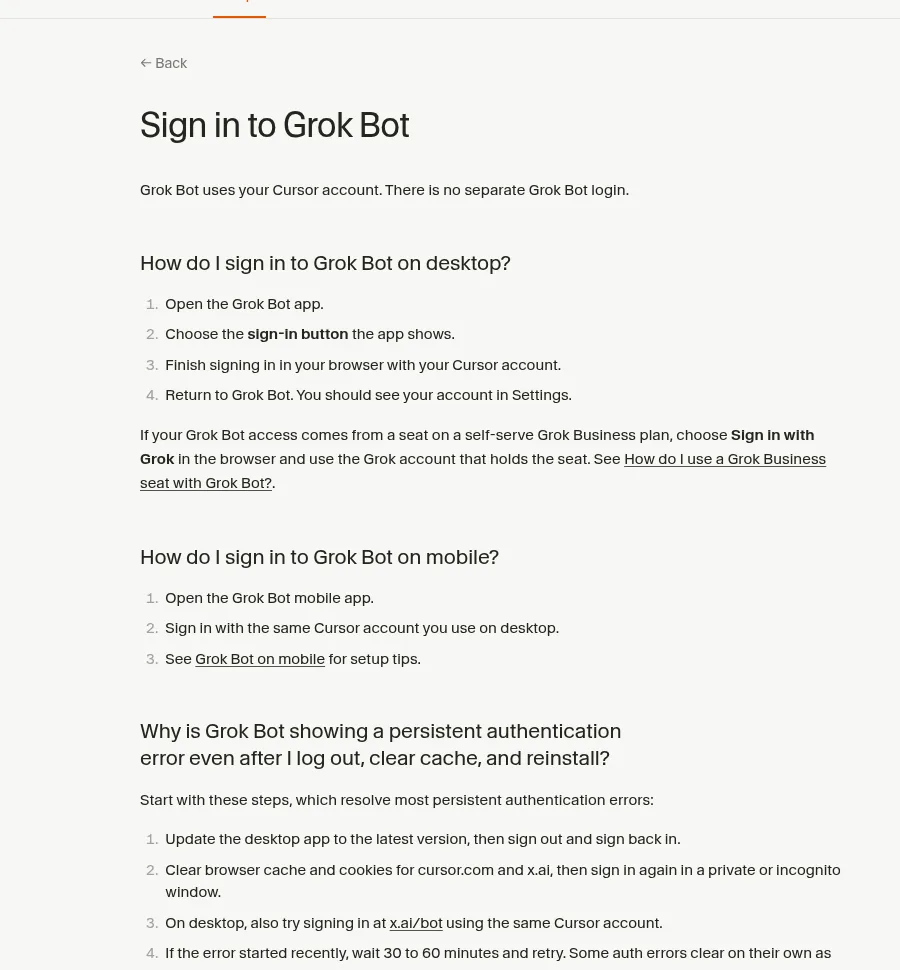
The help page gives four steps:
- Open the Grok Bot app.
- Choose the sign in button the app shows.
- Finish signing in in your browser with your Cursor account.
- Return to Grok Bot. You should see your account in Settings.
If your company uses single sign on, the docs say to sign in through your normal company flow. Do not switch to a personal account.
How to sign in on your phone
Open the Grok Bot mobile app and sign in with the same Cursor account you use on desktop. Using the same account matters. Your Bots, chats, and plan live on that account, so a different email shows you an empty app.
Which account do you use?
This depends on where your access comes from. The docs list three cases:
- A Cursor plan. Sign in with your Cursor account.
- A Grok Business seat. Choose Sign in with Grok in the browser, and use the Grok account that holds the seat.
- SuperGrok or X Premium+. Sign in, then link your subscription when the app asks.
How linking works
On iPhone and Android, the docs say the access screen offers Link Grok Account, and then Finished Linking? Refresh My Status. On desktop, it is in Settings, then Usage and Billing, under Get Access with Grok.
The FAQ page adds two things worth knowing:
- Get Access with Grok only shows up when linking would raise your usage. If you do not see it, you may already have that access.
- A link is permanent. If you link SuperGrok to the wrong Cursor account, you cannot move it yourself. Contact support with both accounts.
The FAQ also says the email on a Cursor account cannot change. So pick the email you want to keep before you start.
How to fix a sign in that does not finish
The troubleshooting page gives these steps when sign in does not complete:
- Keep Grok Bot open while sign in runs in your browser.
- Check that the browser shows a successful Cursor sign in.
- Go back to the app yourself if it does not pop back up.
- Choose Sign in on the welcome screen again. If you are already in the app, use Sign In with Cursor from Settings.
- Check that your account has Grok Bot access.
How to fix a sign in loop or auth error
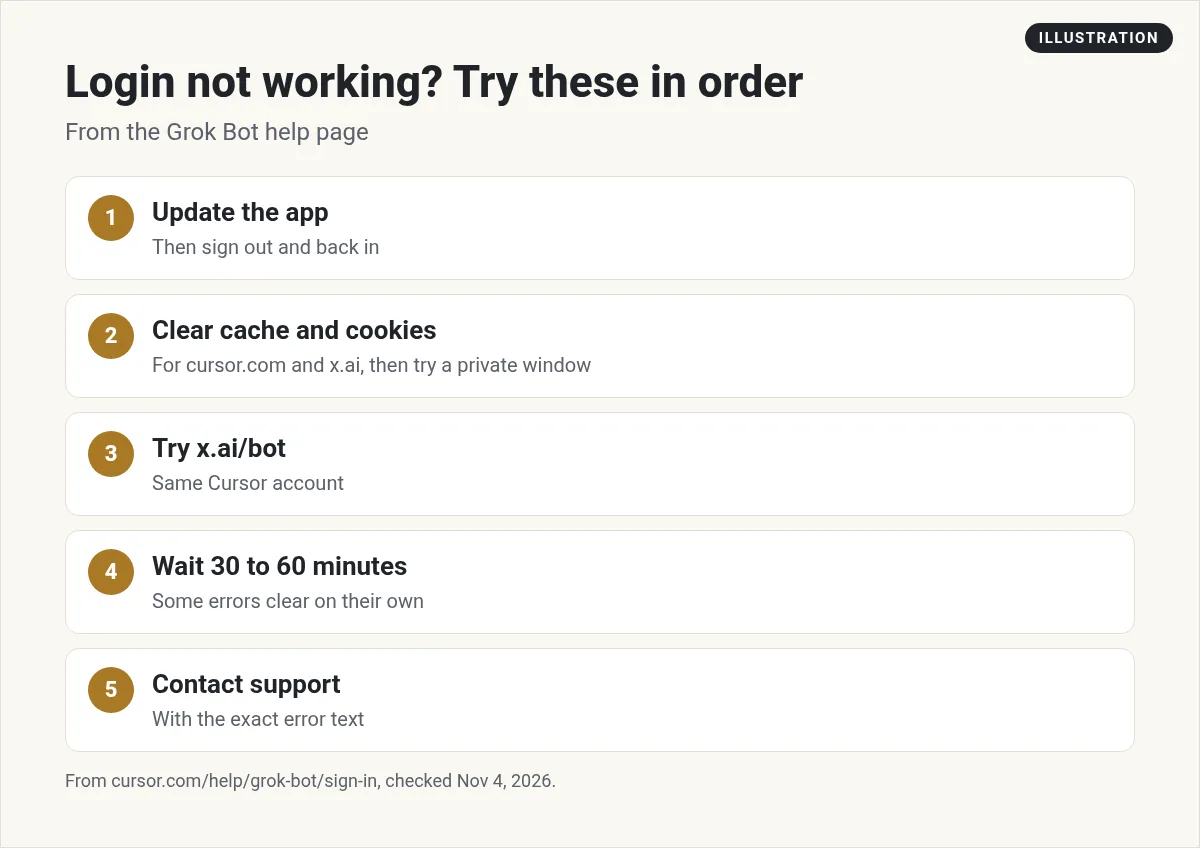
The help page says these steps fix most stuck sign ins:
- Update the desktop app, then sign out and sign back in.
- Clear browser cache and cookies for cursor.com and x.ai. Then sign in again in a private or incognito window.
- On desktop, also try signing in at x.ai/bot with the same Cursor account. If the phone loops, sign in on desktop first.
- If the error just started, wait 30 to 60 minutes and try again. Some errors clear on their own.
One surprise: the help page says reinstalling the app usually does not fix this. Try the steps above first.
When to contact support
Some problems cannot be fixed from your side. The help page says this includes some sign in loops and account link failures. It also says a block from a failed phone check needs support to reset it.
The Get help page on cursor.com lists the support email. The help pages say to include:
- The email on your Cursor account.
- The exact error text.
- Your platform and Grok Bot version.
- The steps you already tried.
- Whether it started while linking SuperGrok or X Premium+.
Quick login checklist
Here is everything above in one list. Run through it before you contact support:
- Am I using my Cursor account, not a new email?
- Is my access from a Cursor plan, a Grok Business seat, or SuperGrok? Did I pick the matching sign in?
- Is the app up to date?
- Did I clear cookies for cursor.com and x.ai and try a private window?
- Did I try x.ai/bot on desktop, or sign in on desktop before my phone?
- Did I wait 30 to 60 minutes if the error is new?
If you can say yes to all of these and it still fails, it is time to write to support.
Two videos worth watching
StraightToPoint shows a quick setup, from download to first tool. It is from August, so some screens and plan details have changed since.
From the StraightToPoint channel (not mine): Short and simple. Plan details in it are from launch week, so check the current plans page.
alexusadays shares an honest first night with Grok Bot, including the errors they hit and what wasted time.
From the alexusadays channel (not mine): Useful because it shows real failures, not just a demo.
My own tips
This part is my opinion. Write down which email your Cursor account uses, and use it everywhere. Most login trouble I see comes from mixing two emails. Also, sign in on your computer first, then your phone. The desktop flow is easier to fix if something goes wrong.
You are signed in. What now?
Logging in is step one. Setting up a useful team of Bots is where most people get stuck.
AIM Agent is an AI Chief of Staff for business owners. It comes with an AI C-suite (COO, CMO, CFO, CRO and CTO), a Business Bot Builder and 100+ business skills, and it runs on AIM OS, a private vault that holds your notes and memory. AIM Agent is a ready-made AI business team that works inside Grok Bot, so you skip the setup and get to work.
Here is what you get:
- An AI Chief of Staff that helps you plan and run your business
- An AI C-suite: COO, CMO, CFO, CRO and CTO
- A Business Bot for each business or project. Give it a real task and it brings the work back for you to review
- 100+ business skills for content, offers, research and more
- Step by step setup guides and email support
So you skip the setup and get to work.

Want an AI team to help run your business? Meet AIM Agent, an AI Chief of Staff for business owners. I am a co-founder of AIM Agent and have a financial interest in the product.
Get a ready made team inside Grok Bot
AIM Agent gives you an AI Chief of Staff, an AI C-suite, and 100+ business skills, so you skip the setup and get to work.
See AIM AgentFrequently asked questions
Do I need a separate Grok Bot account?
No. Grok Bot uses your Cursor account. There is no separate Grok Bot login.
How do I sign in with a Grok Business seat?
Choose Sign in with Grok in the browser and use the Grok account that holds the seat.
Where is Link Grok Account?
On the phone's access screen, or on desktop in Settings, then Usage and Billing, under Get Access with Grok.
Can I move a SuperGrok link to another account?
No. A link is permanent. Contact support with both accounts.
Why am I stuck in a sign in loop?
Update the app, sign out and in, clear cookies for cursor.com and x.ai, and try a private window. If it is new, wait 30 to 60 minutes.
Will reinstalling fix a login error?
The help page says reinstalling usually does not help. Try the other steps first.
Is there a faster way to get a working team?
AIM Agent gives you an AI Chief of Staff, an AI C-suite, and 100+ business skills inside Grok Bot.
Sources
Checked November 4, 2026. Plans, prices, and rules can change.
