
Grok Bot · Names
A good Bot name tells you what that Bot owns. Here is how to rename a Bot, change its picture and label, choose names that scale, and keep your sidebar clean as your team grows.
Grok Bot names are more than labels. A clear name tells you, and your other Bots, exactly what each Bot owns. Rename a Bot in two clicks, give it a picture and a title, and sort your roster into sections so you can find anyone fast.
I read the Grok Bot help page on editing a Bot and the Bots docs on November 2, 2026. I run a team of about 25 Bots, so I learned the naming part the hard way. Here is the simple version.
TL;DR
On desktop, right click the Bot in the sidebar and choose Rename Bot, or double click its name. You can also click the Bot's name at the top of the chat to open its details and edit the name and the label. On the phone, tap the Bot's name, tap Edit, change the Name or Title, and tap Done. Only the owner can rename a Bot. Name each Bot after its job, like Inbox Triage or Weekly Report, not something vague like Helper.
Why a Bot's name matters
When you have one Bot, the name does not matter much. When you have ten, it matters a lot. You need to know at a glance which Bot to talk to. And your Bots hand work to each other, so a clear name helps them pick the right teammate too.
The Grok Bot docs say it well. Jobs like Talent Scout, Expense Manager, and Bug Reproduction give a Bot guidance and make its saved context reusable. A General Helper does neither.
So the name is really a promise. It says what this Bot owns.
How to rename a Bot
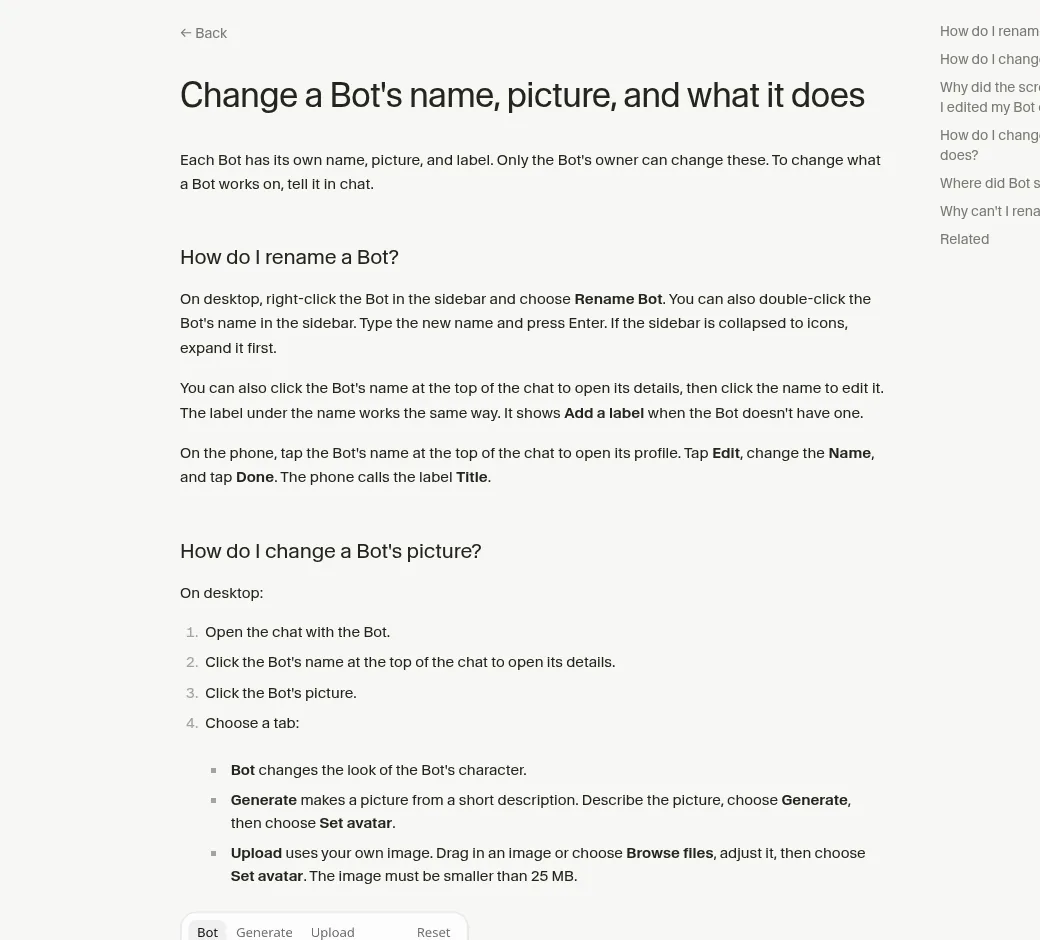
On desktop:
- Right click the Bot in the sidebar and choose Rename Bot. Type the new name and press Enter.
- Or double click the Bot's name in the sidebar.
- Or click the Bot's name at the top of the chat to open its details, then click the name to edit it.
If your sidebar is shrunk down to icons, expand it first.
On the phone: tap the Bot's name at the top of the chat to open its profile. Tap Edit, change the Name, and tap Done.
Can't rename it? The help page says only the Bot's owner can change its name, picture, and label. Rename Bot does not show up for a Bot you do not own.
Add a label or title
Under the name there is a short label. On desktop it says Add a label when it is empty. On the phone the same field is called Title.
I use the label for the scope. For example, the name is Weekly Report and the label is Sales team, every Friday. That way the sidebar shows both the job and the beat.
Change the picture
Open the Bot's details, then click its picture. You get three tabs on desktop:
- Bot changes the look of the Bot's character, like its shape and color.
- Generate makes a picture from a short description. Describe it, choose Generate, then Set avatar.
- Upload uses your own image. It must be smaller than 25 MB.
On the phone, tap Edit, then the picture or Avatar. The tabs are Shape, Generate, and Upload, and you can take a photo or pick one from your library.
The changelog has added fun shapes over time, like square, sparkle, clover, flower, heart, house, and star, and even a pumpkin for Halloween. Your Bot can also change its own title and the shape and color of its picture if you ask it to.
I give each team a color. Sales Bots are one color, content Bots another. It makes the sidebar easy to scan.
From the Kai Kelly channel (not mine): Kai Kelly shows the basic idea in under a minute: make a Bot, give it a name, and give it a job in plain words. It is made for kids with a grown up, which makes it a very clear intro.
Name ideas that work
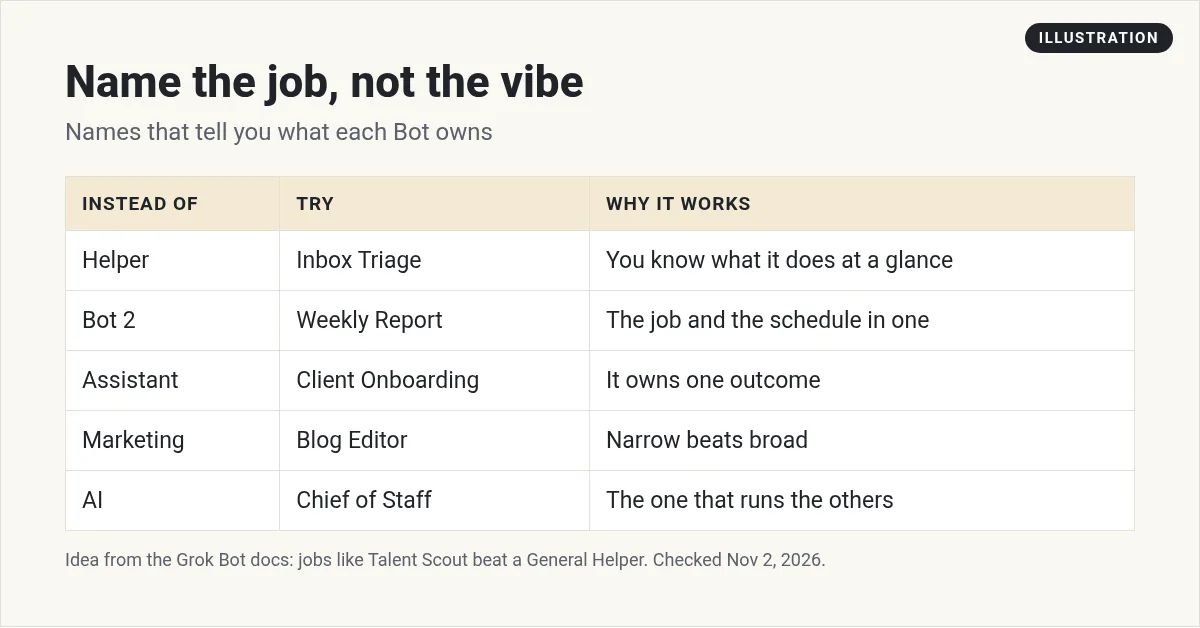
My rules for names:
- Name the job. Inbox Triage, not Helper.
- Keep it short. Two words is best. It has to fit in the sidebar.
- One Bot, one outcome. If you need and in the name, you may need two Bots.
- Fun is fine, if the label is clear. The official guides use names like Gus, Ink, and Fuse. The label then says what they do.
The docs give a good test for when to make a new Bot at all: when the work has its own goal, its own tools, its own style, its own approval rules, or its own schedule.
Changing what a Bot does
A new name does not change the Bot's job by itself. The help page says personal Bots no longer have a description field. To change what a Bot does, tell it in chat. For a lasting rule, ask it to remember.
From now on, you are Weekly Report. Every Friday, read the sales sheet and send me a five line summary. Ask before you send anything to anyone else. Remember this.
Shared Bots are the exception. A shared Bot you own or manage still has a description you can edit under About. See my Grok Bot memory guide for how lasting rules work.
Keep a big roster tidy
Once you have more than a handful of Bots, use these tools from the docs:
- Pin the Bots you use most, so they stay at the top.
- Sections. Right click a Bot and choose Move to new section. Group by project, client, or business. Sections sync between desktop and iPhone.
- Hide from sidebar takes a Bot off the main list without deleting its work or pausing its routines. Find it again under Hidden Bots at the bottom of the sidebar.
- Duplicate on iPhone copies a Bot's role for a new scope, like one Bot per region. The copy does not bring chat history or memory, so rename it right away.
My sidebar has sections like Leadership, Content, Sales, and Ops. My chief of staff Bot sits pinned at the top. See Grok Bot chief of staff for how that Bot runs the others.
From the Brock Mesarich | AI for Non Techies channel (not mine): Brock Mesarich walks through the official guides and the 30+ Bots the Grok Bot team uses, with their names and jobs. Great for name and role ideas. His description links to a scraping tool he promotes.
Your primary Bot
One Bot can be your primary Bot. The docs say it is your main point of contact, checks in with you on its own, and coordinates your other Bots. To switch, right click it in the sidebar and choose Replace with different Bot. A shared Bot cannot be your primary Bot.
Small fixes
- Blank screen after editing on Android. The help page says this was a bug in Android 1.18.0. Your change is usually saved. Update to 1.19.0.
- Rename Bot is missing. You are not the owner.
- Want to remove a Bot for good? That is Delete, and it erases the Bot's chats and memory. Hiding is usually the better choice.
Skip the guessing: get a roster that is already named
The hardest part of a Bot team is not the names. It is knowing which roles a business needs and what each one should own.
AIM Agent is an AI Chief of Staff for business owners. It comes with an AI C-suite (COO, CMO, CFO, CRO and CTO), a Business Bot Builder and 100+ business skills, and it runs on AIM OS, a private vault that holds your notes and memory. AIM Agent is a ready-made AI business team that works inside Grok Bot, so you skip the setup and get to work.
Here is what you get:
- An AI Chief of Staff that helps you plan and run your business
- An AI C-suite: COO, CMO, CFO, CRO and CTO
- A Business Bot for each business or project. Give it a real task and it brings the work back for you to review
- 100+ business skills for content, offers, research and more
- Step by step setup guides and email support
So you start with clear roles, clear names, and a chief of staff that runs the rest.

Want an AI team to help run your business? Meet AIM Agent, an AI Chief of Staff for business owners. I am a co-founder of AIM Agent and have a financial interest in the product.
Start with a named, ready team
AIM Agent gives you an AI Chief of Staff, an AI C-suite, and 100+ business skills, so every Bot has a clear job from day one.
See AIM AgentFrequently asked questions
How do I rename a Grok Bot?
On desktop, right click the Bot in the sidebar and choose Rename Bot, or double click its name. On the phone, open its profile, tap Edit, change the Name, and tap Done.
Why can't I rename a Bot?
Only the Bot's owner can change its name, picture, and label.
How do I change a Bot's picture?
Open the Bot's details and click its picture. Pick a shape, generate one from a description, or upload an image under 25 MB.
Does renaming change what the Bot does?
No. Tell the Bot its new job in chat and ask it to remember.
What is a good Bot name?
Name the job, like Inbox Triage or Weekly Report. Keep it to about two words.
How do I hide a Bot without deleting it?
Choose Hide from sidebar. The Bot keeps its work and routines and shows under Hidden Bots.
Is there a faster way to get a Bot team for my business?
AIM Agent gives you an AI Chief of Staff, an AI C-suite, and 100+ business skills, so you start with a team built for business work.
Sources
Checked November 2, 2026. Plans, prices, and rules can change.
