
Grok Bot · Sidebar
Ten Bots can turn into a mess. A few clicks keep it tidy.
Grok Bot sidebar is the list of your Bots on the left of the app. If you make more than a few, it gets messy fast. The docs have a small set of tools to keep it clean: pins, sections, hiding, renaming, and shortcuts.
I read the Bots page of the docs and the changelog on November 9, 2026. The changelog says you can create more than 50 Bots, so these tools matter.
TL;DR
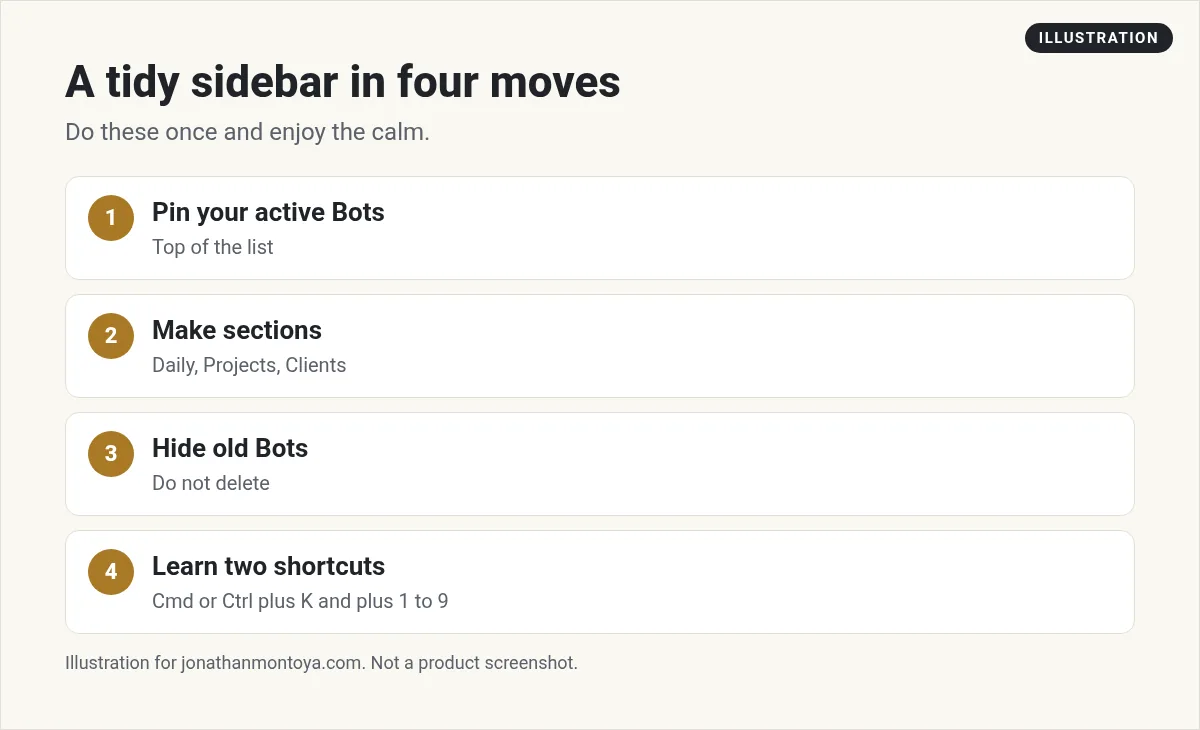
Pin your active Bots. Group Bots into sections by project, client, or business. Hide a Bot instead of deleting it. Rename with a double click. Use Cmd or Ctrl plus 1 to 9 to jump.
Pin your active Bots
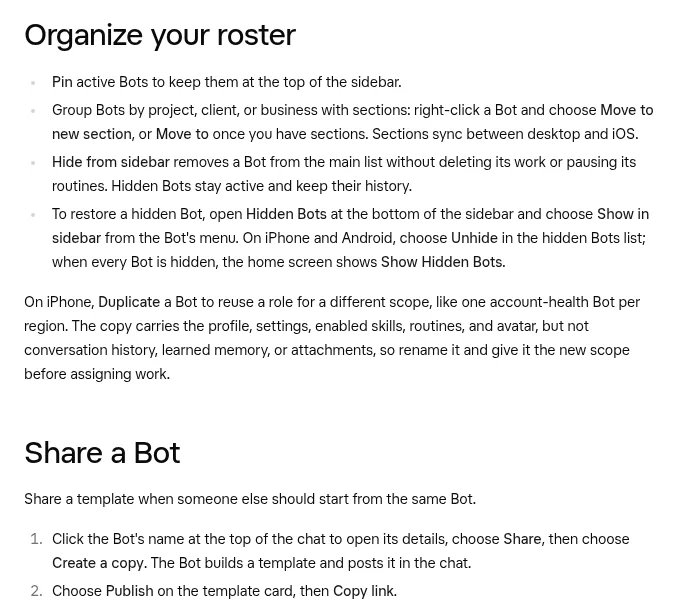
The docs say to Pin active Bots to keep them at the top of the sidebar. On a Mac, Cmd plus 1 through 9 jumps to the first nine Bots in the sidebar. On Windows and Linux use Ctrl plus the number. The changelog also says pinned Bots stay in sync between the desktop and the phone.
Group Bots into sections
Right-click a Bot and choose Move to new section, or Move to once you have sections. Sections sync between desktop and iPhone. The docs suggest grouping by project, client, or business. You can also drag Bots and sections, or move them with Move up and Move down. The Unassigned section can be moved too.
A Bot can even create a new Bot inside one of your sections, according to the September 1 changelog.
From the Brock Mesarich | AI for Non Techies channel (not mine): A creator lists many ways to use Grok Bot.
Hide, do not delete
Hide from sidebar removes a Bot from the main list without deleting its work or pausing its routines. Hidden Bots stay active and keep their history. To bring one back, open Hidden Bots at the bottom of the sidebar and choose Show in sidebar. On phones, choose Unhide.
Deleting is permanent. The docs say it erases the Bot's profile, conversations, memory, routines, and attachments, including shared facts it saved for your other Bots. Files and sign ins on the shared computer are not isolated per Bot and can remain. If you may need the work later, hide it instead.
Rename and change the picture
Right-click a Bot and choose Rename Bot, or double-click its name in the sidebar. If the sidebar is collapsed to icons, expand it first. Click the Bot's name at the top of the chat to open its details. There you can edit the name and a short label under it.
To change the picture, open the details and click it. The tabs are Bot for the character look, Generate to make a picture from a short description, and Upload for your own image, which must be smaller than 25 MB.
Shortcuts that help
- Search palette: Cmd or Ctrl plus K.
- New Bot: Cmd or Ctrl plus N.
- Compact sidebar: Cmd or Ctrl plus B.
- Previous or next Bot: Alt plus up or down.
- Cycle Bots: Control plus Tab.
From the Moritz | AI Systems channel (not mine): A creator reviews big updates and asks if you should switch.
Any results mentioned in videos are not typical and are not a promise of income. Your results depend on your work and your market.
Read the sidebar signals
The sidebar shows Needs attention for a question, approval, or handoff, and Unread activity for a new result. Opening a chat marks it read. The dock badge counts unread conversations. You can mark a chat read or unread from the Bot menu.
A tidy setup for a small business
Try three sections: Daily, Projects, and Clients. Put your primary Bot and your inbox Bot under Daily. Give each big project its own Bot under Projects. Hide any Bot you have not used in a month.
Duplicating is on iPhone. A duplicate carries the profile, settings, skills, routines, and avatar, but not chat history, learned memory, or attachments. Rename it and give it the new scope before you assign work.
Example: from messy to tidy
Imagine twelve Bots with names like Bot 3 and Test. Start by renaming each one to its job, such as Inbox, Weekly report, or Client A research. Pin the three you use daily. Make a section called Clients and move the client Bots into it. Hide the two test Bots.
That takes about five minutes. After that, Cmd or Ctrl plus K and the number shortcuts get you anywhere in seconds.
Mistakes to avoid
- Deleting a Bot you might need. Hide it first.
- Giving Bots vague names. A name should tell the job.
- Making too many sections. Three or four is plenty.
- Forgetting that all Bots share one computer, whatever the sidebar looks like.
A business team inside Grok Bot
Organizing Bots is good. Knowing which Bots to build is better.
AIM Agent is an AI Chief of Staff for business owners. It comes with an AI C-suite (COO, CMO, CFO, CRO and CTO), a Business Bot Builder and 100+ business skills, and it runs on AIM OS, a private vault that holds your notes and memory. AIM Agent is a ready-made AI business team that works inside Grok Bot, so you skip the setup and get to work.
Here is what you get:
- An AI Chief of Staff that helps you plan and run your business
- An AI C-suite: COO, CMO, CFO, CRO and CTO
- A Business Bot for each business or project. Give it a real task and it brings the work back for you to review
- 100+ business skills for content, offers, research and more
- Step by step setup guides and email support
So your Bots work inside a business system, not a pile of chats.

Want an AI team to help run your business? Meet AIM Agent, an AI Chief of Staff for business owners. I am a co-founder of AIM Agent and have a financial interest in the product.
Get a business team inside Grok Bot
AIM Agent gives you an AI Chief of Staff, an AI C-suite, and 100+ business skills, with step by step setup guides and email support.
See AIM AgentFrequently asked questions
How many Bots can I have?
The changelog says you can create more than 50 Bots.
Does hiding a Bot stop its routines?
No. Hidden Bots stay active and keep their history.
Is deleting a Bot reversible?
No. Delete erases the profile, chats, memory, routines, and attachments.
How do I rename a Bot?
Right-click it and choose Rename Bot, or double-click its name.
Do sections sync to my phone?
Sections sync between desktop and iOS.
Can I upload my own picture?
Yes. Use the Upload tab. The image must be smaller than 25 MB.
What is AIM Agent?
AIM Agent gives you an AI Chief of Staff, an AI C-suite, and 100+ business skills inside Grok Bot, with step by step setup guides and email support.
Sources
Checked November 9, 2026. Plans, prices, and rules can change.
