
GoHighLevel client onboarding starts with one clear goal. Get the access you need, create the client's sub-account, and set up the tools for that goal. Then send a test lead through the whole path. Before you hand off, have the client's team show you they can take the lead, reply, and book the next step.

Disclosure: I earn a commission if you buy HighLevel through my links, at no extra cost to you. I am not HighLevel and do not speak for it.
Key takeaways
- Ask who can grant access and who will handle new leads before you build.
- Use a snapshot for reusable setup or pick an industry for its built-in tools.
- Check draft pages, email replies, and phone and texting status before launch.
- Use a live test and a staff walkthrough to sign off on the handoff.
GoHighLevel client onboarding checklist
Start with the first job the client hired you to do. For a field service team, that may be taking quote requests from a form and booking a call. Use that one path to decide what you need to set up. Give each phase an owner and agree on what counts as done.
| Phase | Suggested owner | What to do |
|---|---|---|
| Prep | Agency and client lead | Agree on the first goal. Get access, brand files, business hours and SMS details if needed. |
| Build | Agency admin | Create the sub-account. Add the client details and connect the tools in scope. |
| Test | Agency and front-line staff | Send a test lead through the form. Check who gets it and book a test slot. |
| Hand off | Client lead | Have staff show how they will handle a lead. Write down who owns any open tasks. |
Still shaping the offer? See the GoHighLevel agency guide and the list of services to sell with HighLevel. The offer sets the scope for this checklist.
Prep for kickoff
Send one short intake list. Ask the client to name a lead for the project and tell you who can grant access to each tool. Ask them to invite your team where they can. Put the owner and the status on the list so you can see what still needs a reply.
- AccessAsk who can grant access to the site, the domain and its DNS settings, and any email or calendar tools you need. Find out who can make changes if a vendor holds the keys.
- Brand and hoursAsk for the business name, website, logo, colors, time zone, business hours and days the team is closed. Ask who can approve page text and messages.
- Lead and booking rulesWrite down what fields to ask for, who gets a new lead, what people can book and who covers when the main person is out.
- Contacts and textingIf contacts need to move, ask for the export and confirm which list to bring in. If texting is in scope, ask for the business details used for Brand registration, a live public site that matches the Brand details, and sample texts. For Manual Setup, get proof of how people opt in, plus public links to the Privacy Policy and Terms & Conditions. For Chat Widget Setup, plan where the widget will go on the site.
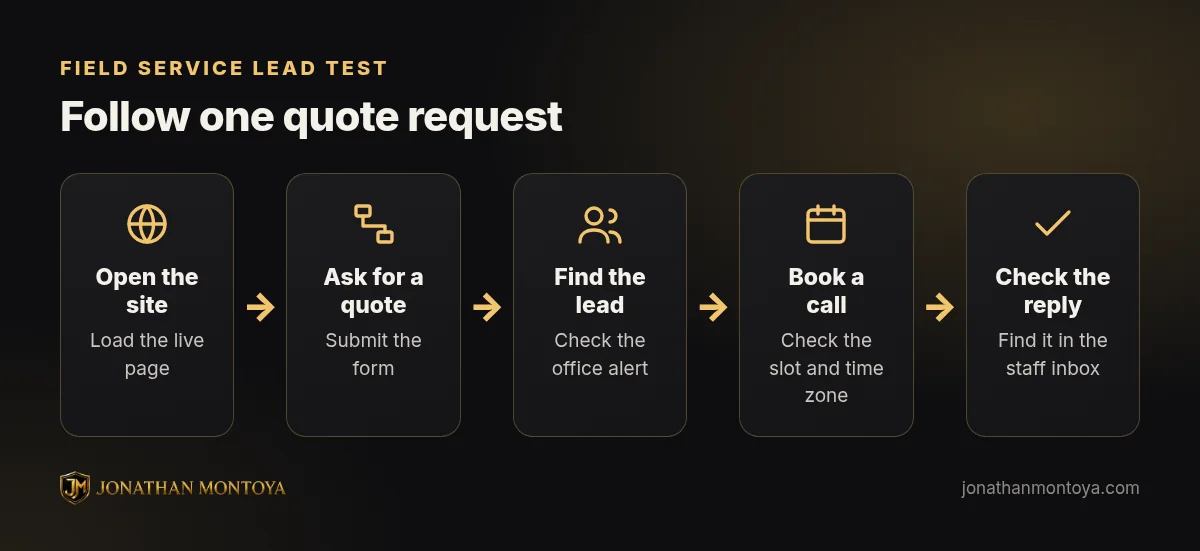
End the kickoff with a test you can both picture. For example, a request from the site should reach the office team. The team should be able to find it, reply, and book the right kind of call. Write down any item you still need from the client.
Create the sub-account
A sub-account is the workspace you set up for the client. Pick a snapshot if you want to reuse your own forms, calendars or workflows. Pick an industry if the client needs the tools that come with that industry. Review the choice with the client before you create the account.
Start from a snapshot
You need Agency Admin access and a snapshot in your account. Open Account Snapshots from the Agency Dashboard. Find the snapshot you want and click Create New Account (+) beside it. Fill in the client details and click Add Sub-Account. HighLevel loads the snapshot as it creates the account.
You can pick one snapshot at creation and load more later. Once you apply a snapshot, you can edit or remove its parts by hand. There is no single unload action. If another agency shares a snapshot with you, check that the share lets you import it and use it in the new account. A link restricted to a sub-account works only for the account named in the share.
Use the in-app snapshot guide
Open Agency View > Account Snapshots. HighLevel says the First-Interaction Helper opens when the list is empty. It explains what a snapshot is and points you to create or import one. The guide has tips, short videos and links for creating, loading, sharing, refreshing and pushing updates. After your first snapshot, look for the help wizard in My Snapshots, Imported Snapshots or Shared Snapshots.
Start from an industry
In Agency View, open Sub-accounts > Create Sub-Account. If you see the account type options, pick the type first. Under Start from an industry, pick Restaurant or Field services, then click Continue. Field Services is in beta. For other businesses, start from a snapshot. Find the business or add it by hand. Check the details and answer What does this client need? Your answers leave the workspace and tools the same. Check the industry before you click Create. You can't switch it or clear it yourself. Contact support if you need a change.
A restaurant gets tools for menus, orders and reservations. Field services gets tools for requests, estimates and jobs. Each has its own guided setup. If your agency sells access as software, see the HighLevel SaaS Mode guide.
Set up the location in LaunchPad
Open the client sub-account and click LaunchPad in the left menu if you have it. The sub-account view guides setup for that location. The agency view covers agency setup. Which tasks you see can depend on your plan, role and access.
- Get the workspace ready. Check the business details, brand and hours. Add or import contacts and set up the calendar if those are in scope.
- Capture new leads. Look for tasks to launch forms, funnels and campaigns.
- Handle sales and replies. Set up email, SMS, phone and pipelines as needed.
- Publish the site and take payments. Connect a domain and publish sites or funnels. Set up payments and memberships if needed.
- Get the shop ready. Set up products, checkout, taxes and how you fill orders.
Use a video or Product Tour Guide where it is offered. Finishing a tour can mark the action complete. LaunchPad tracks progress for each user. Use the live tests below to see if the client can use what you set up. The new guided version is in a rollout for eligible new agencies. If you have a different view, use the phase table and keep your own list of what is ready.
Setting up your first client workspace? My HighLevel link shows a 30-day free trial for new HighLevel customers on HighLevel's own offer page (checked Nov 19, 2026). HighLevel's standard pricing page lists 14 days.
Start HighLevelConnect the tools in scope
Web domain
Ask the client to approve the web address you plan to use. HighLevel supports custom domains for sites and funnels. Sites and funnels loaded from a snapshot start as drafts. Connect the custom domain, review the pages, then publish. Open the live page in a fresh browser tab and check that its links go where you expect.
Email sending
Choose the email sender on its own. The web domain sets the page address. The email sender tells leads who sent the message.
HighLevel's built-in LC Email can send and receive email without a separate provider. Agree on the sender name and email address with the client. Send a test to an inbox you can check, then reply to it. Make sure the sender looks right and the reply lands where staff will see it. HighLevel lists usage charges for email and for phone services, so agree on who will watch those costs.
Phone and A2P registration
If calls are in scope, set up the number the team will use and try an inbound and outbound call. For SMS from applicable local US numbers, HighLevel requires Brand approval and Campaign registration. Use a live public business site that matches the Brand details for either setup. For Chat Widget Setup, install the widget and check that people can see it on the page you submit. It must be the only form on that page that asks for SMS consent. For Manual Setup, use your opt-in proof, public policy and terms links, and sample texts from kickoff.
If this is your first registration, finish the Brand steps and continue into Campaign Details when prompted. For an approved Brand that needs a new campaign, go to Settings > Phone System > Trust Center. Open Brand & Campaigns, then Campaigns > Create Campaign. Select the approved Brand. Fix any issues found by the application checks. Once the checks pass, submit the campaign for carrier review. Wait for approval before you link the sending number to the campaign. Then check for the green A2P Verified label under Settings > Phone System > Phone Numbers before you send a test text. See the A2P 10DLC guide for more on registration.
Test forms and calendars together
Review any forms and calendars you copied. Check the form fields, who should get each lead, and which calendar the booking link opens. Compare the slots to the hours the client gave you. Pay close attention to the time zone and which staff member should take the booking.
Use a test contact and submit the form from the page a lead will see. Find the contact in the sub-account and check who got the alert. Then book a slot. Check the time and any note or confirmation the lead gets. Try a reply and ask the staff member who should see it to show where it landed.
If a test goes wrong, write down where it stopped. For example, the form may come through while the booking link still opens the wrong calendar. Fix that step and run the whole path again before you share it with the client.
Set up the Client Portal if it is in scope
Use the Client Portal if people need a place to log in for things like courses or shared files. To find the unified portal options, open Memberships > Client Portal > Dashboard in the sub-account. That is the path in HighLevel's guide. Some accounts also show Client Portal as a tab under Sites.
The portal comes with a default subdomain on clientclub.net. Ask the client if they want to use it or set a custom domain.
For a custom portal domain, open Memberships > Client Portal > Settings > Domain Setup. Choose Custom domain and enter the domain. Add the A or CNAME record at your domain registrar. Once it takes effect, go back to Domain Setup and click Update Domain. In Branding, set the portal name, logo, colors and support email, then save.
Copy the portal URL from Domain Setup. Check the login as a test user and open the page or file the user should see. For broader agency branding, see the HighLevel white label guide.
Test and hand off
Have the person who handles leads share their screen. Ask them to find a test lead, reply, and book a slot. If the client has a portal, have them open it from the link they will share. Teach these daily tasks first so staff know what to do when the first real lead comes in.
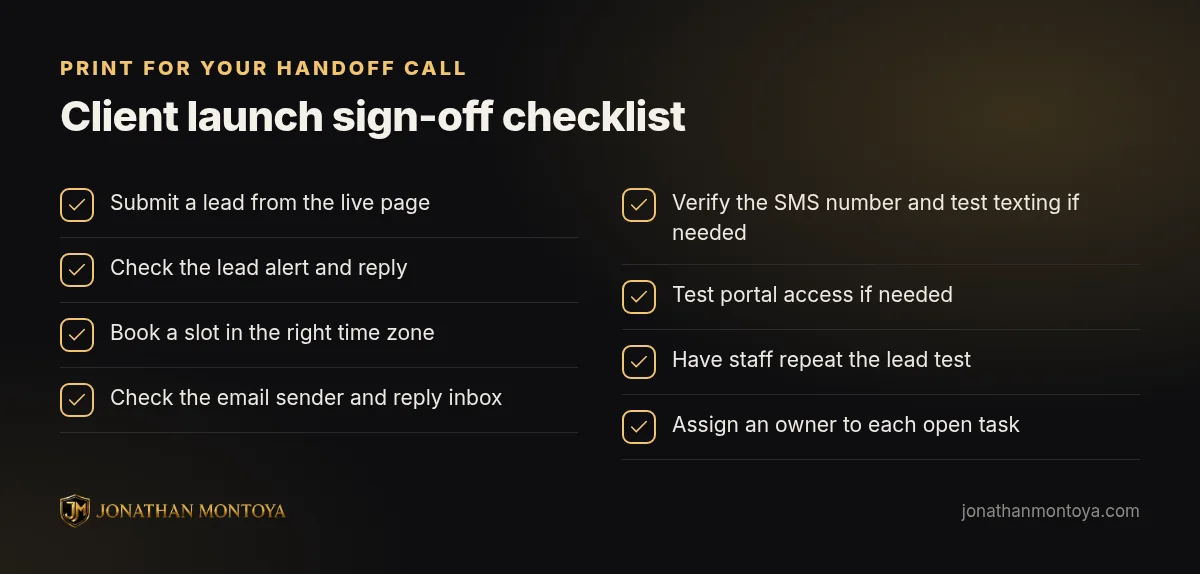
- ☐ Submit a lead from the live page
- ☐ Check the lead alert and reply
- ☐ Book a slot in the right time zone
- ☐ Check the email sender and reply inbox
- ☐ Verify the SMS number and test texting if needed
- ☐ Test portal access if needed
- ☐ Have staff repeat the lead test
- ☐ Assign an owner to each open task
Give the client one handoff note. Include the live links, the people who own each task, and where to ask for help. List anything still open, who owns it, and what must pass before it goes live. Ask the client lead to confirm which parts their staff can take over.
Build your agency offer
If you want help picking an AI service to offer local businesses, start with my free Freedom Launch Accelerator program.
See the free programStart HighLevelFreedom Launch Accelerator is my own free program. I earn a commission if you buy HighLevel through my link, at no extra cost to you. My HighLevel link shows a 30-day free trial for new HighLevel customers on HighLevel's own offer page (checked Nov 19, 2026). HighLevel's standard pricing page lists 14 days. Your results depend on your own work.
FAQ
What is the first step in GoHighLevel client onboarding?
Pick one thing the client wants to do at launch. Then ask who owns each tool you need to connect. For a booking setup, start with the website, the staff calendar, the business hours and the person who will take the lead.
When should an agency use a snapshot or an industry setup?
Use a snapshot when you want to reuse assets like forms and workflows. Pick an industry if the client needs the tools that come with that workspace. HighLevel offers Restaurant and Field Services (beta). For other businesses, start from a snapshot.
Does a HighLevel snapshot copy contacts and bookings?
Contacts, appointments and past conversations stay in the source account. A snapshot can copy setup items like forms and calendars. Plan a separate contact import and decide with the client how to handle any bookings they already have.
Why is the new Sub-Account LaunchPad missing?
HighLevel says access depends on when your agency joined, your plan, your permissions and the rollout group. Creating a new location for an existing agency does not move that agency into the new rollout. You can work through the checklist on this page with your team.
Why is a funnel still a draft after I load a snapshot?
HighLevel copies funnels and websites as drafts when it loads a snapshot. Connect the custom domain and publish the pages you plan to use. Then open the live link and send a test form.
Can I send a test SMS while A2P is pending?
For the applicable US local numbers, wait for the campaign to be approved and link the number to it. Check for the green A2P Verified label in Phone Numbers. Toll-free messaging has its own verification process.
Do all agency clients need a Client Portal?
Use it if the people the business serves need access to things like courses or shared files. For a staff handoff, teach the team how to do its daily work in the sub-account. Add a portal walkthrough if the portal is part of the project.
Sources, checked Nov 19, 2026
- Create a New Sub-Account Using Snapshot
- Snapshots Overview
- Integrated Onboarding for Snapshots
- How to Share Snapshots
- HighLevel Industries
- Subaccount LaunchPad
- Agency LaunchPad
- HighLevel Pricing and Billing Guide
- A2P Campaign Registration Guide
- How to Set Up the Client Portal
- HighLevel pricing and standard trial
- HighLevel offer page for my link
Affiliate disclosure: I earn a commission if you buy HighLevel through my links, at no extra cost to you. Freedom Launch Accelerator and the GHL Clone are my own programs. HighLevel is a trademark of HighLevel, Inc. This site is not run by or affiliated with HighLevel.
