
Grok Bot · Linux
Yes, Grok Bot has a real Linux app. Here is which file to download, how updates differ from Mac and Windows, how to get it on a Chromebook, and what to do when something breaks.
Grok Bot runs on Linux. The desktop app comes as a .deb package, an .rpm package, or an AppImage, for both x64 and ARM64 computers. The big difference from Mac and Windows is updates: the deb and rpm versions update through your package manager, not inside the app.
I read the Grok Bot download page, docs, and help center on November 2, 2026. Older posts that say there is no Linux app are out of date.
TL;DR
Download Grok Bot for Linux from the official download page or the Grok Bot page in your Cursor dashboard. Pick .deb for Debian and Ubuntu, .rpm for Fedora and other RPM systems, or AppImage for almost any distro. Choose x64 or ARM64 to match your computer. Installing the deb or rpm adds the Grok Bot package source, so new versions come with your normal system upgrades. To update by hand, run sudo apt update and sudo apt install --only-upgrade grok-bot on Debian or Ubuntu, or sudo dnf upgrade --refresh grok-bot on Fedora.
Which Linux file to download
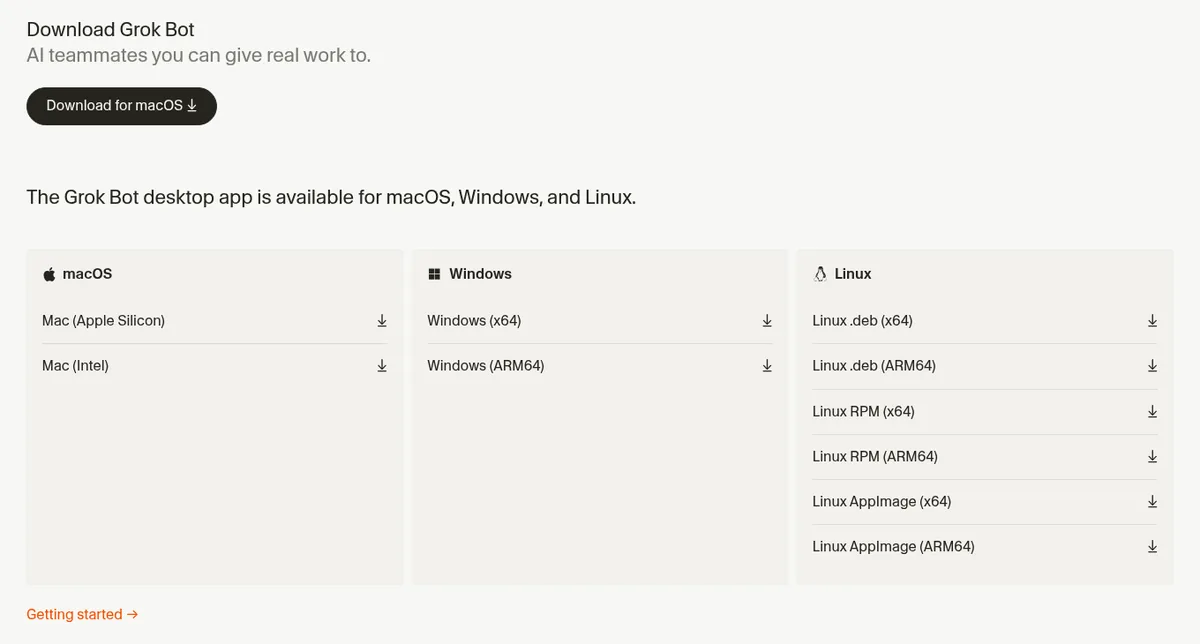
The official download page lists six Linux files: deb, RPM, and AppImage, each for x64 and ARM64.
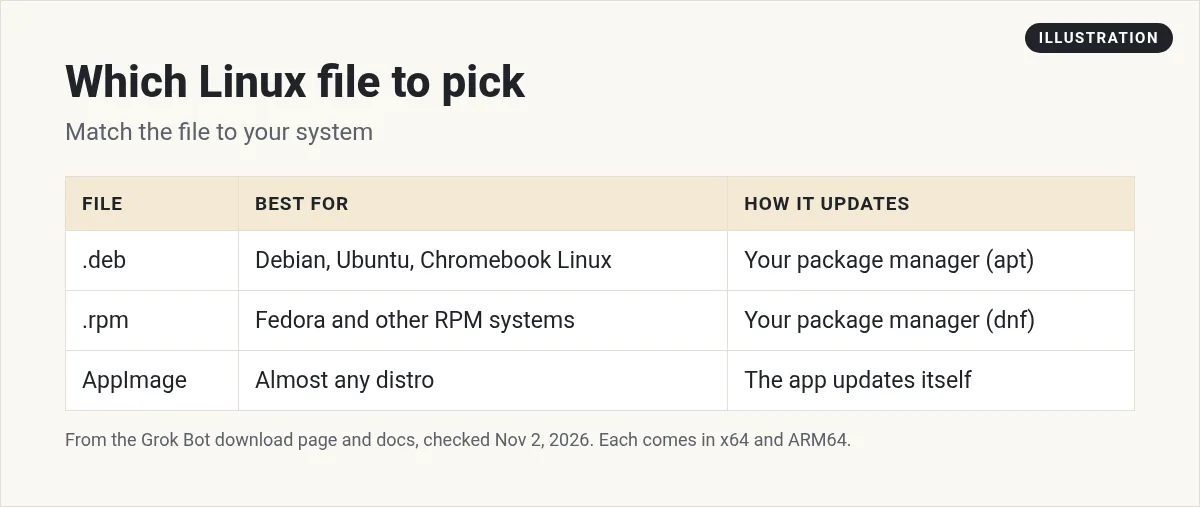
- .deb is for Debian, Ubuntu, Linux Mint, and similar systems. It is also what you use on a Chromebook's Linux setup.
- .rpm is for Fedora and other RPM based systems.
- AppImage is one file that runs on almost any distro, without installing.
Not sure if you have x64 or ARM64? Open a terminal and run uname -m. If it says x86_64, pick x64. If it says aarch64, pick ARM64.
Get the app only from the official download page, or from the Grok Bot page at cursor.com/dashboard/bot. Do not use unofficial mirrors.
How to install it
For a .deb, open the file with your software center, or run this in the folder where you saved it:
sudo apt install ./the-file-name.deb
For an .rpm, open it with your software center, or run:
sudo dnf install ./the-file-name.rpm
For an AppImage, the AppImage docs say to make the file executable, then run it. In a terminal, that is chmod +x and the file name, then run the file. You can also right click it, open Properties, and allow it to run as a program.
Then open Grok Bot and sign in. Grok Bot uses your Cursor account. My Grok Bot setup guide walks through your first Bot.
From the Operator Mode channel (not mine): This short, unofficial tutorial walks through the deb, rpm, and AppImage installs. The creator says it is not an official channel. Always copy download links from the official page, not from a video.
How updates work on Linux
This is the part that trips people up.
- deb and rpm: the docs say installing the package adds a signed Grok Bot package source to your system. New versions arrive when you run your normal system upgrades. The app's Check for Updates button only tells you a new version is out. It does not install it.
- AppImage: updates work like on Mac and Windows. The app downloads and installs them.
To update a deb or rpm by hand:
- Debian or Ubuntu:
sudo apt update && sudo apt install --only-upgrade grok-bot - Fedora or other RPM systems:
sudo dnf upgrade --refresh grok-bot
If the app says Update required, the screen may show a command instead of a button. Choose Copy command, run it in a terminal, and restart Grok Bot. Your Bots keep running in the cloud the whole time. The settings pane also has no Automatic Updates switch for deb and rpm installs, since your package manager handles it.
Grok Bot on a Chromebook
There is no Chromebook version, and Grok Bot does not run in a web browser. You can use the Android app from the Play Store, but the full desktop app needs Linux on your Chromebook.
- Turn on Linux. Google's help page says: select the time at the bottom right, open Settings, then About ChromeOS, then Developers. Next to Linux development environment, choose Set up. It can take 10 minutes or more.
- A terminal opens. You now have a Debian setup.
- Download the Grok Bot .deb that matches your Chromebook (x64 or ARM64) and install it.
Work or school Chromebooks may not allow Linux. Ask your admin.
From the Matt Goes Electric channel (not mine): This video, filmed in October 2026, shows the full Chromebook install using the Linux setup. The creator explains why the Android app alone is limited.
Small Linux differences to know
- Notifications. On Linux, alerts are quiet while Grok Bot is the window in front, and your phone is notified as usual. See my Grok Bot notifications guide.
- Hardware acceleration is off by default on Linux. It is on by default on Mac and Windows.
- Shortcuts use Ctrl where Mac uses Cmd. For example, Ctrl plus comma opens settings. See my Grok Bot settings guide.
- 1Password. The changelog says that on Windows and Linux, the Bot notices an installed 1Password app and can offer to connect it. You approve each login in 1Password.
Common Linux fixes
- The version will not change. Run the update command for your system. If the old version keeps coming back, contact support with your version and platform.
- The window flickers or stays blank. Try turning hardware acceleration on or off in Settings, then restart.
- The AppImage will not open. Make sure it is set as executable.
- Links do not open the app. The changelog says this was fixed, so update to the latest version.
- Reinstalling. Your Bots and chats belong to your account, so they are still there after you reinstall.
When you contact support, include your Grok Bot version and your Linux distro. My Grok Bot not working guide has more fixes.
Your Bots do not run on Linux. Their computer does.
One more thing. The app on your Linux machine is just the window. Your Bots work on their own cloud computer, which itself runs Linux. So closing your laptop does not stop a Bot or a routine. A Bot only runs commands on your own machine if you say yes when Grok Bot asks to allow that.
Skip the setup after the install
Installing on Linux is the easy part. Deciding what Bots to build and what each one owns is where most people get stuck.
AIM Agent is an AI Chief of Staff for business owners. It comes with an AI C-suite (COO, CMO, CFO, CRO and CTO), a Business Bot Builder and 100+ business skills, and it runs on AIM OS, a private vault that holds your notes and memory. AIM Agent is a ready-made AI business team that works inside Grok Bot, so you skip the setup and get to work.
Here is what you get:
- An AI Chief of Staff that helps you plan and run your business
- An AI C-suite: COO, CMO, CFO, CRO and CTO
- A Business Bot for each business or project. Give it a real task and it brings the work back for you to review
- 100+ business skills for content, offers, research and more
- Step by step setup guides and email support
So your new install turns into real work on day one.

Want an AI team to help run your business? Meet AIM Agent, an AI Chief of Staff for business owners. I am a co-founder of AIM Agent and have a financial interest in the product.
Go from install to real work
AIM Agent gives you an AI Chief of Staff, an AI C-suite, and 100+ business skills, so your fresh install has a team ready to go.
See AIM AgentFrequently asked questions
Does Grok Bot work on Linux?
Yes. The desktop app runs on Linux x64 and ARM64 as a deb, rpm, or AppImage.
Which file should I pick for Ubuntu?
The .deb file for your computer's type, x64 or ARM64.
Why does Check for Updates not install the update?
On deb and rpm installs, updates come through your package manager. Run the update command for your system.
Can I use Grok Bot on a Chromebook?
Yes, by turning on Linux in ChromeOS settings and installing the .deb. The Android app also works, with fewer features.
Does Grok Bot run in a web browser?
No. Use the desktop app or the phone app.
Do I lose my Bots if I reinstall?
No. Your Bots and chats belong to your account.
Is there a faster way to get a Bot team for my business?
AIM Agent gives you an AI Chief of Staff, an AI C-suite, and 100+ business skills, so you start with a team built for business work.
Sources
Checked November 2, 2026. Plans, prices, and rules can change.
- Grok Bot download page
- Grok Bot docs: FAQ
- Grok Bot docs: Troubleshooting
- Grok Bot docs: Settings and notifications
- Google: Set up Linux on your Chromebook
- AppImage docs: Running AppImages
- Operator Mode: Grok Bot Linux deb rpm AppImage (YouTube)
- Matt Goes Electric: How to install Grok Bot on a Chromebook (YouTube)
- AIM Agent
