
Grok Bot · Skills
Grok Bot skills are how your Bots stop needing the same instructions twice. Here is how to save one, teach one by showing it, test it, and share it with your team.
Grok Bot skills fix the most annoying part of working with AI. You explain a job once, it goes well, and next week you have to explain it all again. A skill saves the method so you never do that.
I went through the official skills guide on October 28, 2026, and the best skill tips from creators who use Grok Bot every day. Here is how it works, in plain words.
TL;DR
A Grok Bot skill is a saved set of instructions for how to do a task. It captures the steps, decision rules, expected output, and safety limits. You make one by finishing a task well, then asking the Bot to save the process as a skill with a name. On desktop you can also teach a browser task by showing it once. Skills are shared across all your Bots, and you can publish one to your team. AIM Agent comes with 100+ business skills, so you can skip building them from scratch.
What a skill is
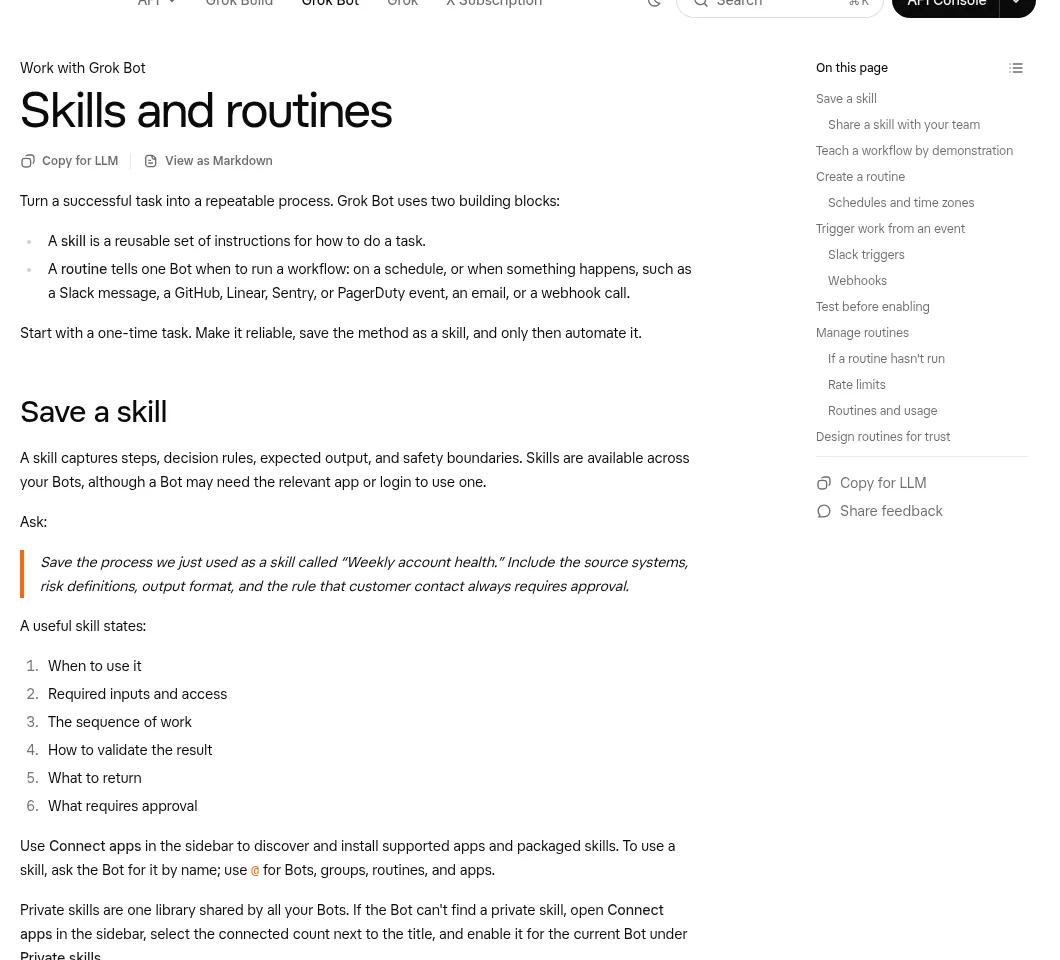
The docs define it simply: "A skill is a reusable set of instructions for how to do a task." It "captures steps, decision rules, expected output, and safety boundaries."
Think of it like a recipe card. The Bot is the cook. With the recipe, any cook on your team can make the same dish the same way.
Skills also work across your team of Bots. The docs say "Private skills are one library shared by all your Bots." A Bot may still need the right app or login to use one.
When to make a skill
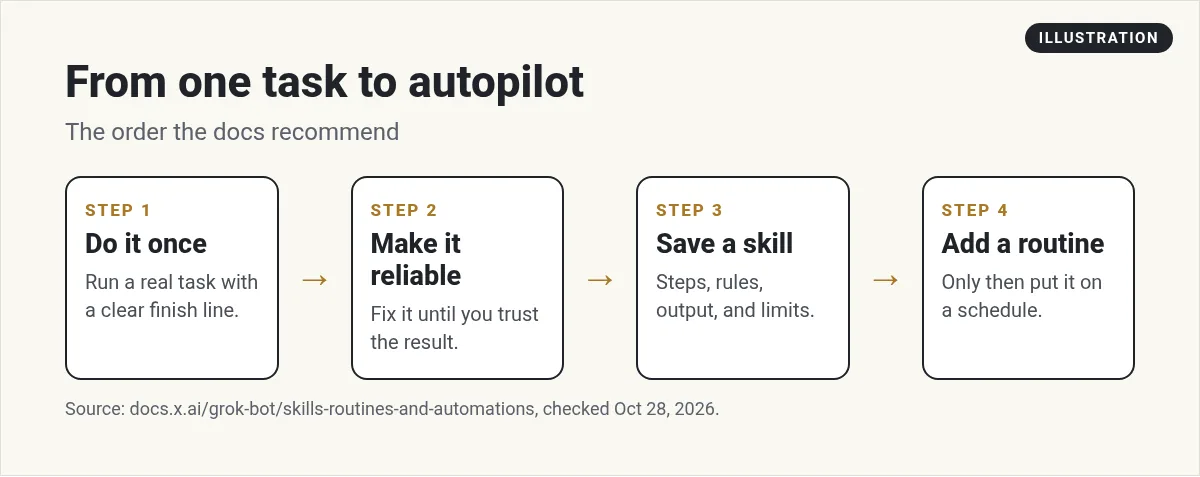
Make a skill when a task worked and you will do it again. The docs' order is: "Start with a one-time task. Make it reliable, save the method as a skill, and only then automate it."
Good signs a task should be a skill:
- You have done it more than twice.
- You had to correct the Bot, and the fix should stick.
- The output needs the same format every time, like a weekly report.
- You want a routine to run it later.
How to save a skill, step by step
- Finish one real task with the Bot. Fix it until the result is right.
- Ask it to save the process. Use a clear name.
- Say what the skill must include. Sources, rules, the output format, and what needs approval.
- Read the saved skill. Fix anything that is vague.
- Test it on a new example. Use a safe one first.
The docs give this example prompt:
Save the process we just used as a skill called "Weekly account health." Include the source systems, risk definitions, output format, and the rule that customer contact always requires approval.
Here is one I wrote for a content business:
Save what we just did as a skill called "Blog outline." Include how you picked the keyword, the sources you checked, the outline format, the reading level, and the rule that nothing gets published without my approval.
The 6 parts of a good skill
The docs list what "A useful skill states." Use this as your checklist:
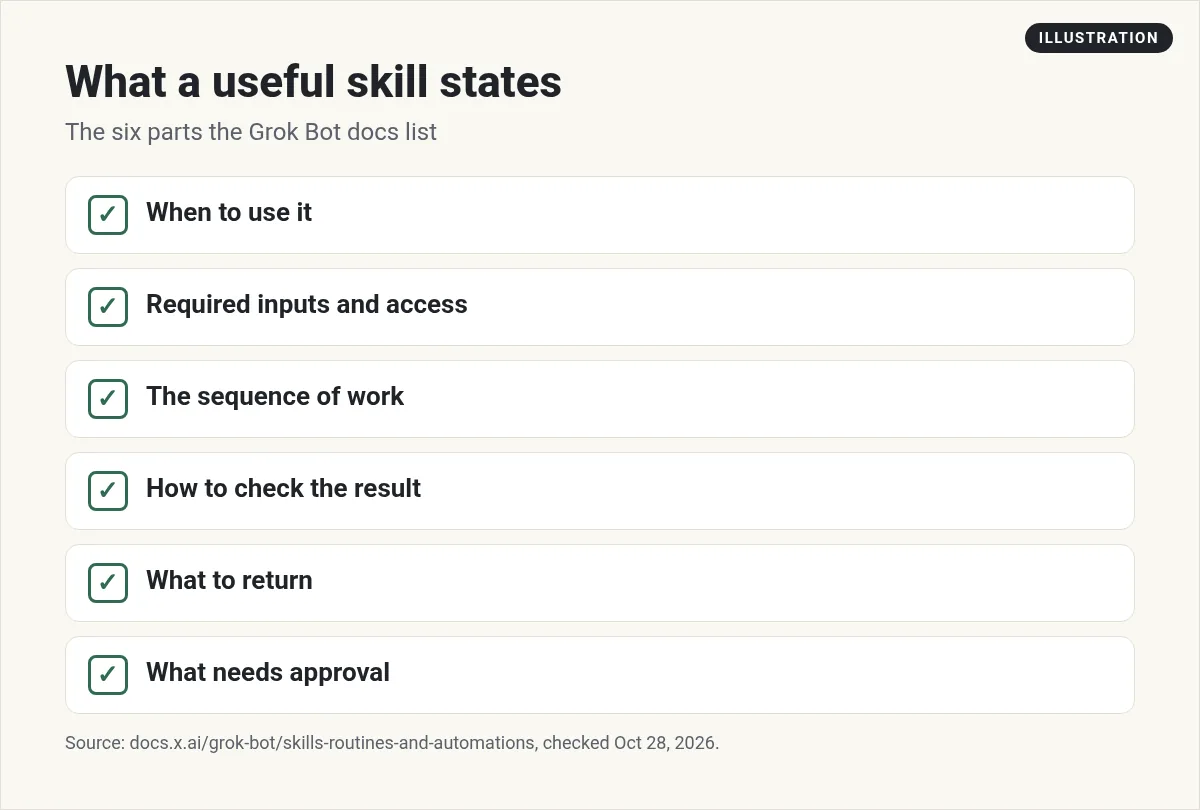
The last part matters most. A skill that does not say what needs approval will not stop when it should.
Teach a skill by showing it
Some tasks are easier to show than to explain, like clicking through a website. Grok Bot has a Teach a task option for that. The steps from the docs:
- Open a one to one chat with the Bot and its computer view.
- Choose Teach a task.
- Describe the result you are about to show.
- Do the task once.
- Stop the recording and review the skill the Bot creates.
- Test it on a safe example before you schedule it.
A few things to know. Teaching records what you do on screen "for up to ten minutes." It does not record your mic. The skill it makes is a draft, so add the rules and approval points one example cannot show. And it "may be enabled gradually," so if you do not see the button, ask the Bot to write a skill from your instructions instead.
Never type a password while teaching. Use the secure sign in flow instead.
How to use a skill
Just ask for it by name. For example: "Run my Blog outline skill for the keyword grok bot routines." You can also type @ to pick Bots, groups, routines, and apps.
If a Bot cannot find a private skill, the docs say to open Connect apps in the sidebar, select the connected count next to the title, and turn it on for that Bot under Private skills.
Share a skill with your team
If you are on a team, you can publish a skill. On desktop, open Connect apps, select the connected count, open the skill, and choose Publish. A skill needs a description first, because teammates and their Bots use it to know when the skill applies. After that, Sync pushes your later edits to the team copy.
Skill tips from creators
- Keep skills small. Nate Herk says he is breaking up big skills that do seven things into smaller ones. That makes each one easier to fix and reuse.
- Bring your old skills. Moritz shows asking Grok Bot to import skills he already had saved in a folder from another AI tool.
- Let the Bot pick. In the official Grok Bot 201 workshop, the team says you can have "multiple skills actually, and it will just pick the right skill."
From the Nate Herk channel (not mine): Nate Herk covers recent Grok Bot updates and why he is splitting big skills into smaller ones.
Any results mentioned in videos are not typical and are not a promise of income. Your results depend on your work and your market.
Skip writing every skill yourself
Skills are where the real value is, but they take work. You have to do the task, fix it, write down the rules, and test it. Doing that for every part of a business takes weeks.
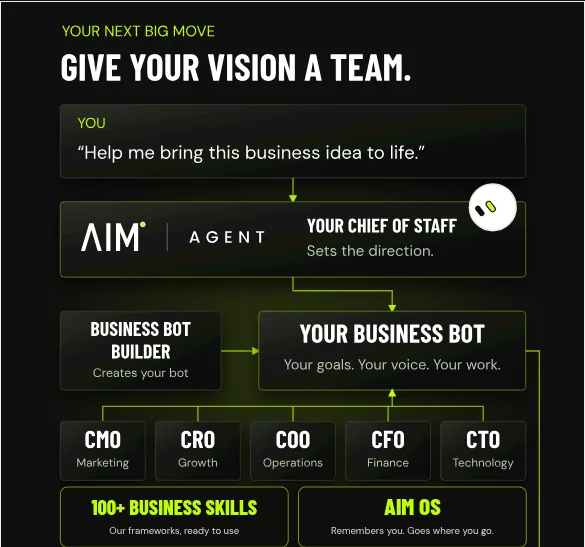
AIM Agent is an AI Chief of Staff for business owners. It comes with an AI C-suite (COO, CMO, CFO, CRO and CTO), a Business Bot Builder and 100+ business skills, and it runs on AIM OS, a private vault that holds your notes and memory. AIM Agent is a ready-made AI business team that works inside Grok Bot, so you skip the setup and get to work.
Here is what you get:
- An AI Chief of Staff that helps you plan and run your business
- An AI C-suite: COO, CMO, CFO, CRO and CTO
- A Business Bot for each business or project. Give it a real task and it brings the work back for you to review
- 100+ business skills for content, offers, research and more
- A step by step setup guide, with email support until your first bot finishes a real task
So you start with skills already written for the jobs a business owner does every week, and you spend your time reviewing the work instead of writing instructions.
Once a skill works, put it on a schedule with Grok Bot routines. New to Bots? Start with Grok Bot explained. For a bigger picture of how agents learn tasks, read how to build an AI agent. I also build skills live in my free MakerAI workshop.
Start with 100+ business skills
AIM Agent gives you an AI Chief of Staff, an AI C-suite, and 100+ business skills for content, offers, research and more.
See AIM AgentFrequently asked questions
What is a Grok Bot skill?
A reusable set of instructions for how to do a task. It saves the steps, decision rules, expected output, and safety limits.
How do I create a skill?
Finish a task well, then ask the Bot to save the process as a skill with a name. Say what to include, like sources, format, and what needs approval.
Can all my Bots use a skill?
Yes. Private skills are one library shared by all your Bots, though a Bot may need the right app or login to use one.
What is Teach a task?
A desktop option where you show the Bot a browser task once. It records up to ten minutes of screen activity and makes a draft skill.
Why can't I see Teach a task?
The docs say it may be enabled gradually. Ask the Bot to make a skill from written steps instead.
Can I share skills with my team?
Yes. On a team, you can publish a private skill from Connect apps. It needs a description first.
Is there a faster way to get business skills?
AIM Agent comes with 100+ business skills for content, offers, research and more, plus an AI Chief of Staff and C-suite.
Sources
Checked October 28, 2026. Plans, prices, and rules can change.
