
Build with AI · Claude Code
Plan mode makes Claude look around and write a plan before it changes a single file. Here is how to use it, step by step.
The fastest way to waste an hour in Claude Code is to let it start coding before it understands your project. Plan mode fixes that. Claude reads, asks, and writes a plan first. You approve it before anything changes.
On October 22, 2026, I went through Anthropic's Claude Code docs on permission modes, common workflows, and best practices. Here is how plan mode works right now.
Quick answer
Plan mode is a Claude Code setting where Claude researches your project and proposes changes without making them. Turn it on by pressing Shift+Tab until the status bar shows plan mode on, by typing /plan before a prompt, or by starting with claude --permission-mode plan. When the plan is ready, you approve it, edit it with Ctrl+G, or tell Claude to keep planning. Checked October 22, 2026.
What is plan mode in Claude Code?
Anthropic's docs say it in one line: "Plan mode tells Claude to research and propose changes without making them."
In plan mode, Claude reads your files, runs commands to look around, and writes a plan. It does not edit your code. Edits stay blocked until you approve the plan.
Think of it like asking a builder for a drawing before they knock down a wall. You see the plan first, and you can change it while it is still cheap to change.
How to turn on plan mode
There are three ways, all from Anthropic's docs.
1. Press Shift+Tab
During a session, Shift+Tab cycles through permission modes. From auto mode, the first press switches to manual mode. After that, the cycle runs default, then acceptEdits, then plan. Keep pressing until the status bar shows "plan mode on."
2. Type /plan before one prompt
To plan just one request, start your prompt with /plan. This is handy when you only need a plan for one bigger change.
3. Start the session in plan mode
Run this in your terminal:
claude --permission-mode plan
To leave plan mode without approving a plan, press Shift+Tab again.
How to approve, edit, or reject a plan
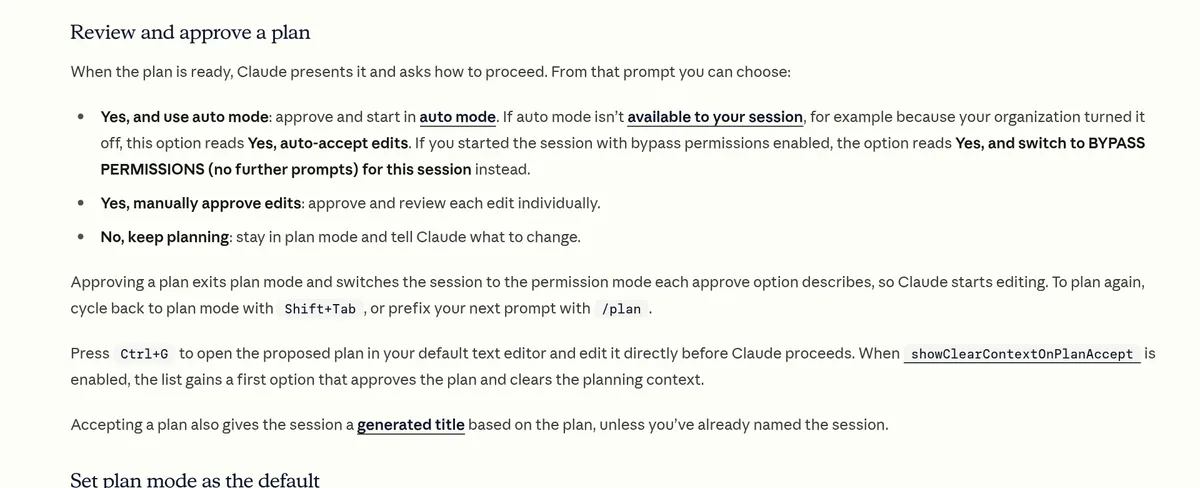
When the plan is ready, Claude shows it and asks how to go on. The docs list these choices:
- Yes, and use auto mode: approve the plan and let Claude work with background safety checks.
- Yes, manually approve edits: approve the plan, but review each edit one by one.
- No, keep planning: stay in plan mode and tell Claude what to change.
If auto mode is not available to you, for example because your company turned it off, the first option reads "Yes, auto-accept edits" instead.
Edit the plan yourself with Ctrl+G
This is my favorite trick. Press Ctrl+G and the plan opens in your text editor. Change anything you want, save it, and Claude follows your version.
Once you approve, Claude leaves plan mode and starts editing. To plan again later, press Shift+Tab to cycle back, or start your next prompt with /plan.
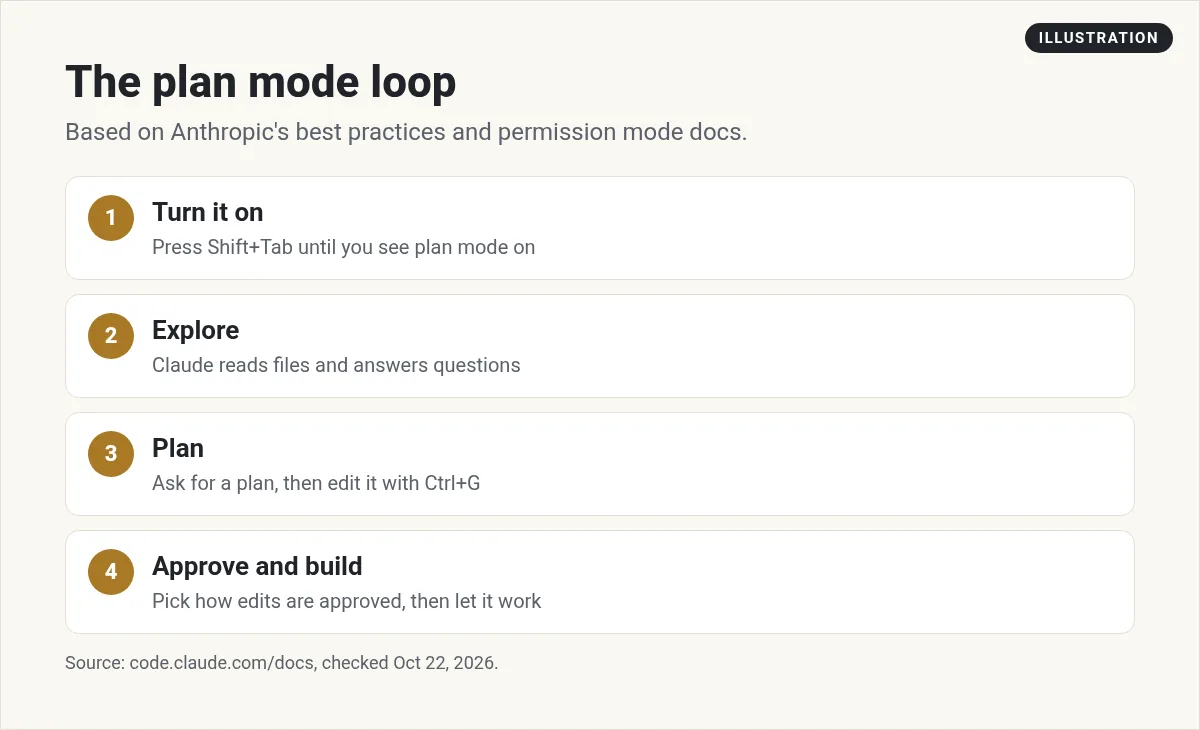
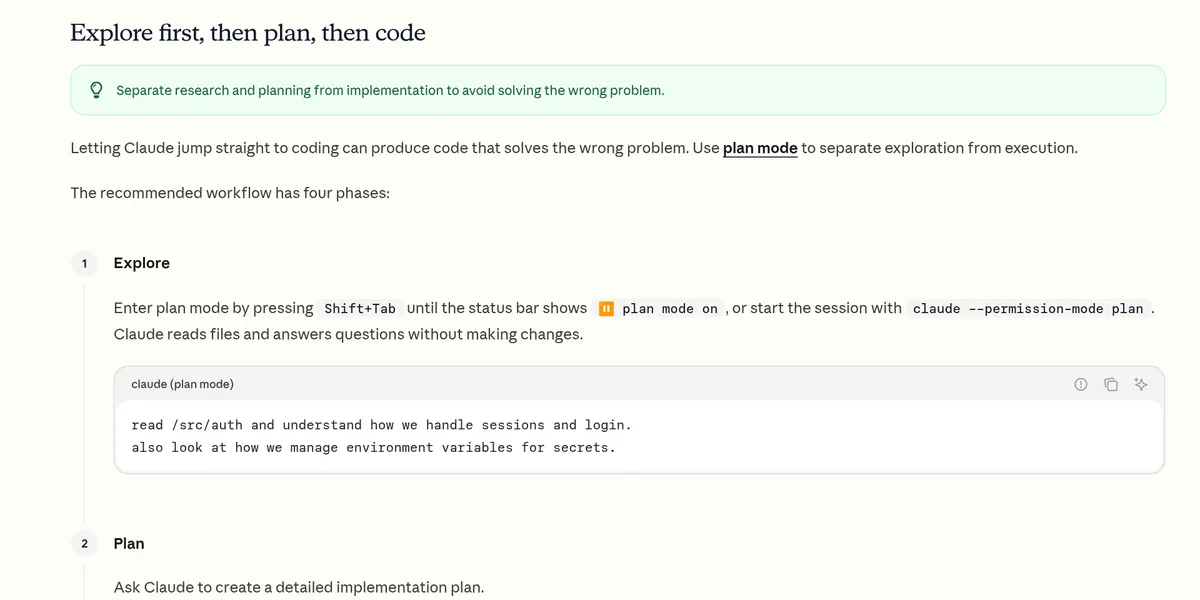
The four-step workflow Anthropic recommends
Anthropic's best practices page has a section called "Explore first, then plan, then code." It warns that "Letting Claude jump straight to coding can produce code that solves the wrong problem."
Here is the workflow it recommends:
- Explore. In plan mode, ask Claude to read the parts of your project that matter. It reads files and answers questions without making changes.
- Plan. Ask for a detailed plan. For example, ask "What files need to change?" and then ask Claude to create a plan.
- Implement. Approve the plan or press Shift+Tab, then let Claude code and check its work against the plan.
- Commit. Ask Claude to commit with a clear message and open a pull request.
When to skip plan mode
Plan mode is not free. The docs say, "Plan mode is useful, but also adds overhead."
For small, clear fixes, like a typo, a log line, or renaming a variable, Anthropic says to just ask Claude to do it. Its rule of thumb is my favorite line in the docs: "If you could describe the diff in one sentence, skip the plan."
Use plan mode when:
- You are not sure how to approach the change.
- The change touches more than one file.
- You don't know the code you are changing very well.
How to make plan mode the default
If you want every terminal session in a project to start in plan mode, the docs say to set defaultMode to plan in the project's .claude/settings.json file. Based on the example in the docs, it looks like this:
{
  "permissions": {
    "defaultMode": "plan"
  }
}
One catch: the VS Code extension does not read project settings for its starting mode. In VS Code, set claudeCode.initialPermissionMode to plan in your user settings instead. I cover the extension in Claude Code in VS Code.
A real example, start to finish
Here is what plan mode looks like on a real task, based on the example in Anthropic's best practices page. Say you want to add Google login to an app.
Step 1, explore. In plan mode, ask Claude to look around first:
read /src/auth and understand how we handle sessions and login.
also look at how we manage environment variables for secrets.
Step 2, plan. Then ask for the plan:
I want to add Google OAuth. What files need to change?
What's the session flow? Create a plan.
Step 3, review. Read the plan. Press Ctrl+G if you want to change a step. Then approve it.
Step 4, build and commit. Let Claude write the code and run the tests. When it is done, ask it to commit with a clear message.
The whole point is that you catch a wrong idea in step 3, before Claude writes a single line.
Common plan mode mistakes
- Planning tiny fixes. If you could describe the change in one sentence, just ask for it.
- Approving without reading. The plan is only useful if you check it.
- Skipping the explore step. A plan written before Claude reads your code is a guess.
- Forgetting you are still in plan mode. Watch the status bar. If Claude is not editing, that may be why.
Why plan mode saves time and usage
Claude Code runs on your Claude plan, and Claude's pricing FAQ says it "shares the same usage limits as the rest of your plan." Usage depends on how long and complex your sessions are.
That is why a bad start is costly. If Claude heads the wrong way and writes code across ten files, you pay for that work twice: once to write it, and again to undo it. A short plan you can read in two minutes is much cheaper than a big rewrite. Plan mode trades a little time up front for a lot less wasted work later. I explain the plans in Claude Code pricing. If you are not sure which plan you need, see Claude Pro vs Max.
Plan mode vs the other permission modes
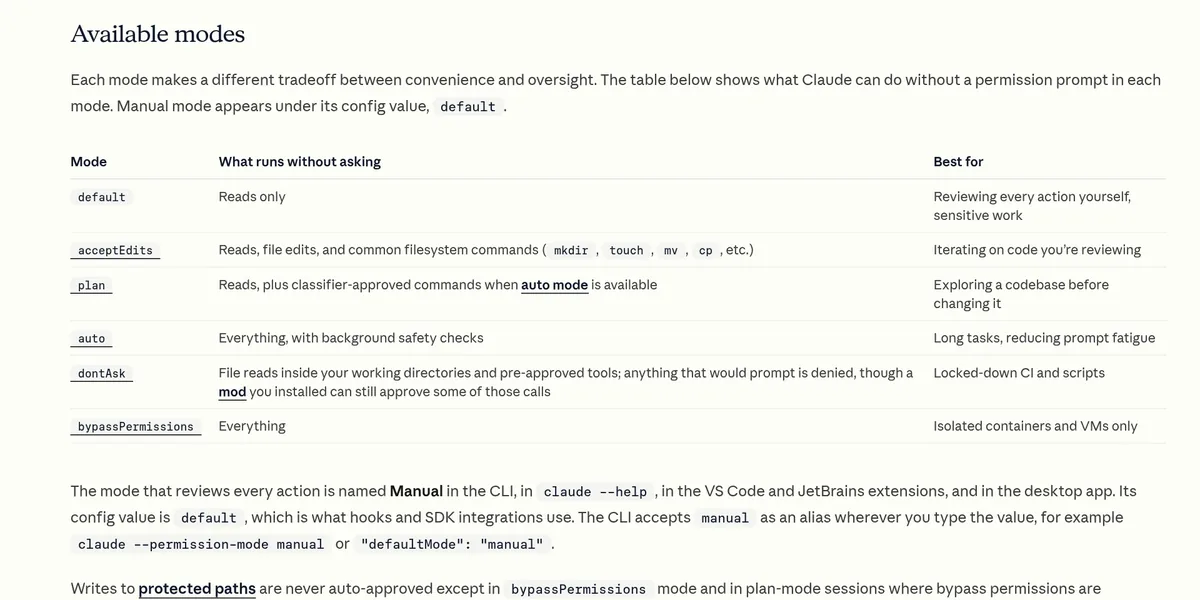
Plan mode is one of several permission modes. Here is the short version from the docs table:
- default (Manual): runs reads only. Best for reviewing every action yourself.
- acceptEdits: runs reads, file edits, and common file commands. Best when you are reviewing code as it changes.
- plan: runs reads, plus commands the safety checker approves when auto mode is available. Best for exploring before changing.
- auto: runs everything, with background safety checks. Best for long tasks.
Plan mode is the most careful choice when you are starting something new.
My tips for better plans
- Point Claude at the right files. Name the folders it should read first.
- Ask questions before asking for a plan. Asking how login works today leads to a better plan.
- Edit the plan with Ctrl+G. Cut steps you don't want before any code is written.
- Save big plans to a file. Then you can ask Claude to check its work against it later.
Want more habits like this? Read my Claude Code best practices and Claude Code commands guides. Brand new? Start with how to use Claude Code.
My video: My beginner walkthrough of Claude. Claude Code has added features since I recorded it, so use this post for current plan mode steps.
Any results mentioned in videos are not typical and are not a promise of income. Your results depend on your work and your market.
My plan mode checklist
Nothing you check here is sent or saved. Download it if you want to keep it.
Meet AIM Agent
AIM Agent is an AI Chief of Staff for business owners. You give it a real task, and it brings the work back for you to review. You stay the one who approves.
Meet AIM AgentI am a co-founder of AIM Agent and have a financial interest in the product.
Frequently asked questions
How do I turn on plan mode in Claude Code?
Press Shift+Tab until the status bar shows plan mode on. You can also start a prompt with /plan, or start the session with claude --permission-mode plan.
Does plan mode edit my files?
No. In plan mode, Claude reads files and writes a plan, but edits stay blocked until you approve the plan.
How do I edit a Claude Code plan?
Press Ctrl+G to open the plan in your text editor. Change it, save it, and Claude follows your version.
How do I leave plan mode?
Approve the plan, or press Shift+Tab again to leave without approving.
Can I make plan mode the default?
Yes. Set defaultMode to plan in your project's .claude/settings.json. In VS Code, set claudeCode.initialPermissionMode to plan in your user settings.
When should I skip plan mode?
Skip it for small, clear fixes. Anthropic says if you could describe the diff in one sentence, skip the plan.
Sources
Checked October 22, 2026. Plans, prices, and rules can change.
