
For your first GoHighLevel calendar setup, go to Settings > Calendars and click + New calendar. For one person who takes calls, pick Personal booking. Then add your details, meeting place, weekly hours and booking rules. Set up a reminder and connect Google Calendar if you use it. Then book a test call before you share the link.

Disclosure: I earn a commission if you buy HighLevel through my links, at no extra cost to you. I am not HighLevel and do not speak for it.
Key takeaways
- Pick the calendar type first. Personal booking fits one person who takes one-on-one calls.
- Date specific hours replace your weekly hours for that date.
- Each user connects their own Google Calendar and must allow full access.
- Book a test appointment before you share the link with anyone.
Before you start your GoHighLevel calendar setup
Open the sub-account where people will book with you. You need access to the calendar settings there. If the app still feels new, start with my GoHighLevel tutorial for beginners. Then come back here.
Pick the right GoHighLevel calendar type
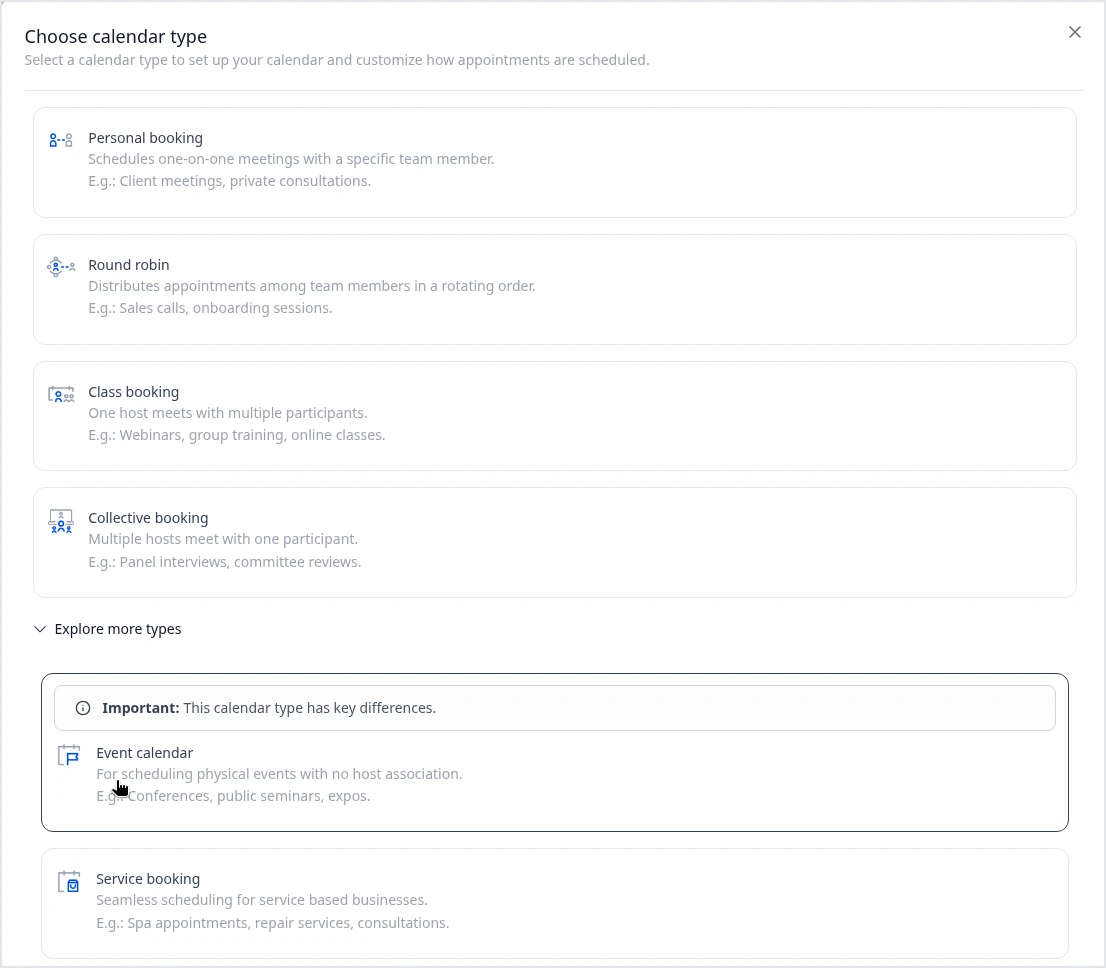
Choose based on who takes the booking and how many people join. Event calendar and Service booking sit under Explore more types.
| Calendar type | What the app says | Good to know |
|---|---|---|
| Personal booking | Schedules one-on-one meetings with a specific team member. | Pick this for a call that always goes to the same person. |
| Round robin | Distributes appointments among team members in a rotating order. | Assign at least one team member. Share bookings by availability or equal distribution. |
| Class booking | One host meets with multiple participants. | You set seats per class. Each confirmed booking takes one seat. |
| Collective booking | Multiple hosts meet with one participant. | A slot shows only when all hosts are free at the same time. |
| Event calendar | For scheduling physical events with no host association. | Use a physical location or paste a fixed video link. HighLevel does not create a new video link for each booking. |
| Service booking | Seamless scheduling for service based businesses. | To use a Service Menu, have an agency admin turn on the feature. Then assign the calendar to a group and create the menu. |
If you pick Event calendar, the app shows a note that says This calendar type has key differences. Read it before you go on.
Want to follow along in your own account? My HighLevel link shows a 30-day free trial on HighLevel's own offer page (checked Nov 19, 2026). HighLevel's standard pricing page lists 14 days.
Start HighLevelHow to set up a personal booking calendar
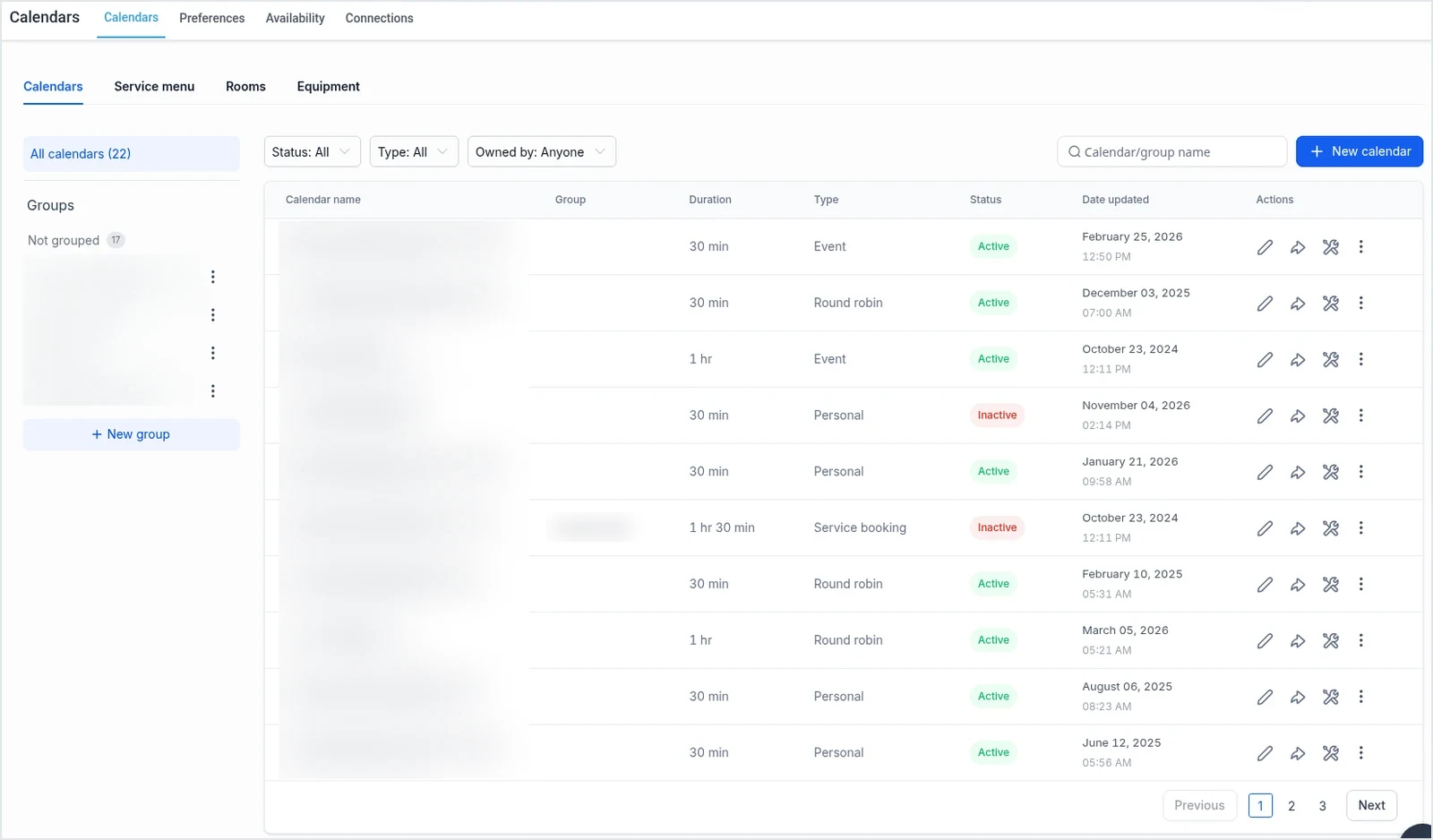
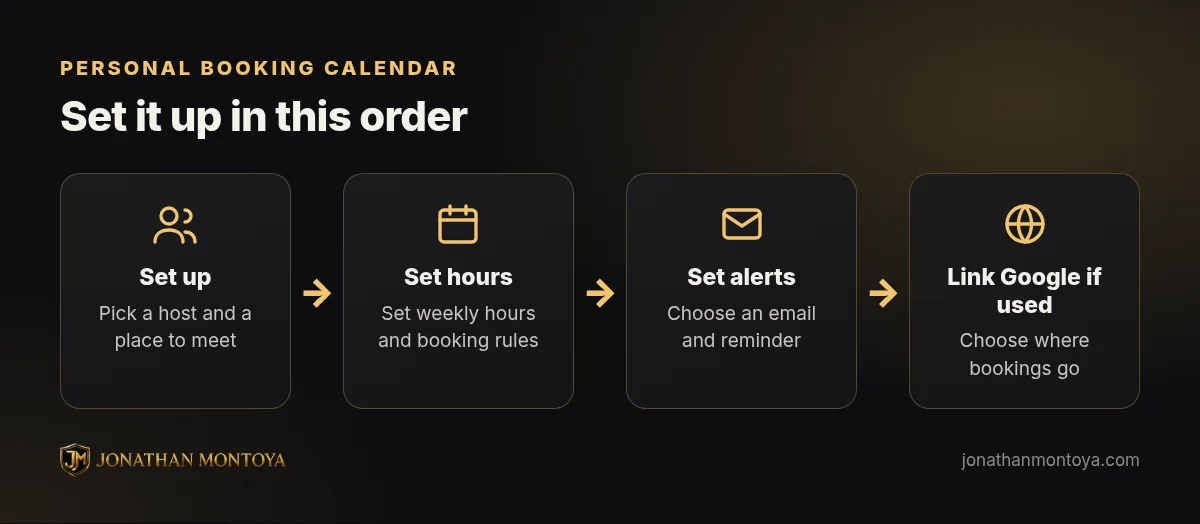
- Open your calendar settingsIn your sub-account, go to Settings > Calendars. Stay on the Calendars tab. Click + New calendar at the top right. HighLevel's help docs may call this button Create Calendar.
- Pick Personal bookingIn the Choose calendar type box, click Personal booking. It is made for one-on-one meetings with one team member.
- Fill in the basic detailsGive the calendar a name like Discovery Call and add a short description. Check the team member. HighLevel adds the person who made the calendar, and you can change it. Check the custom URL and set the meeting length.
- Set the meeting locationSet where the call or visit will happen. Check the link or location when you make your test booking.
- Set your availabilitySet weekly hours and add date specific hours for days off or odd days. If you use Schedules, check the host's schedule time zone.
- Set the booking rulesDecide how far ahead people must book, how far out they can book and whether you want a buffer between calls.
- Save the calendarSave the calendar. To make changes later, find it in Calendar Settings. Open its three-dot menu and pick Edit.
- Set up alertsOpen Notifications for this calendar. Turn on the booking email and reminder you want. Choose who gets each message and when the reminder goes out.
- Connect Google if you use itOpen Connections and add Google Calendar. Allow Calendar read and write access, plus Profile and Email access. Pick the linked calendar for bookings and the conflict calendars to check for busy times.
- Test and shareCopy the booking link and use it to make a test booking. Check the time, meeting place and messages. Send the link to guests or copy the embed code and add it to your site.
Set weekly hours and date-specific hours
Availability decides when people can book. HighLevel splits it into two parts. Weekly hours repeat every week. Date specific hours change one date, like a holiday.
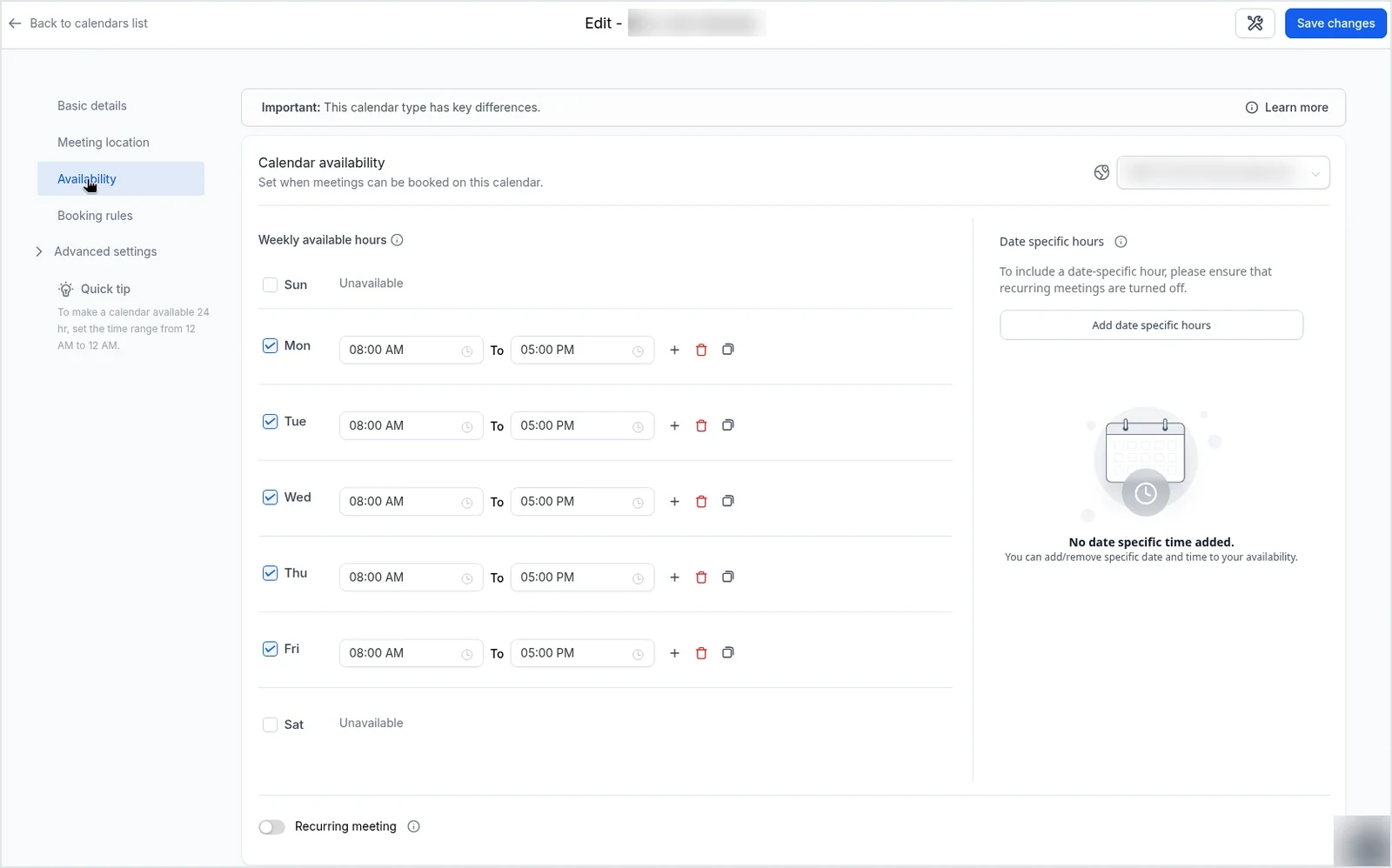
Find your Personal booking calendar in Calendar Settings. Open the three-dot menu and click Edit. In the editor, open Availability. Under Booking Availability, click the host's name to open the side panel. In Weekly Working Hours, click Edit. Set the days and times the host takes calls. Use Copy if other days follow the same hours. Click Save.
Check the host's time zone
With Schedules enabled, set the time zone in the host's schedule. The booking widget shows slots in the guest's browser time zone. Check the zone and slot time on the booking page during your test.
Enter the full hours for a date override
A date specific entry replaces your weekly hours for that date. Say you work 9:00 AM to 5:00 PM. On one Tuesday you want to take calls until 8:00 PM. You must enter 9:00 AM to 8:00 PM for that date. If you only enter 5:00 PM to 8:00 PM, the earlier hours disappear.
In the host's availability, click Add Date-Specific Hours. Choose the date and enter the full start and end times. Click Save. HighLevel is rolling out the option to select several dates at once. If you see it, you can save the same hours for all the dates you pick.
Set the booking rules
Booking rules control how and when people can grab a slot. HighLevel's calendar guides list settings like these:
- Minimum scheduling notice. How far ahead someone must book. You set the amount of notice.
- Date range. How far into the future people can book.
- Meeting interval. The gap between start times, such as every 30 minutes.
- Buffer time. Extra time before or after a meeting so calls do not run back to back.
Start with the notice you need to get ready for a call. Then check the first and last dates a guest can book. If the page looks empty, check the meeting length, notice, date range and buffers.
Turn on reminders and confirmations
Open your calendar in Calendar Settings and go to Notifications. Pick when the message should go out.
| Notification | When it is sent |
|---|---|
| Booked (unconfirmed) | Right when someone books with the unconfirmed status |
| Booked (confirmed) | Right when a confirmed booking is made, or when a booking is changed to confirmed |
| Cancellation | When a booking is canceled, marked no-show or marked invalid |
| Reschedule | When the date or time changes |
| Reminder | Before the meeting, at the timing you set |
| Follow-up | After the meeting, at the timing you set |
Pick a channel, such as email, in-app, SMS or WhatsApp. Then choose from the recipients listed for that channel. For a first setup, open the Email tab for the booking status you plan to use. Turn it on, choose who gets it and check the subject line. For a reminder, also set how long before the meeting it should go out. Save your settings.
A few limits to know. Phone numbers need a country code. HighLevel bills SMS by segment, so keep texts short. WhatsApp needs a connected, verified business account and approved templates. If you plan to text people in the US, read my A2P 10DLC guide first.
Send a test email or SMS to see how the message looks. Then book a test appointment to check the cancel and reschedule links. The booking gives HighLevel the data those links need. If a workflow sends the message, check that it uses an appointment-based trigger.
Connect Google Calendar
Connect Google Calendar if you want to sync bookings and block busy times.
- Open ConnectionsGo to Calendars, then Calendar Settings. Click the Connections tab, then + Add New.
- Connect GoogleClick Connect beside Google Calendar. Pick the Google account you want to use.
- Allow every permissionAllow Calendar read and write access, plus Profile and Email access. Sync may fail if you skip a permission.
- Check for warningsIf you skipped a permission, go to Settings > Integrations > Google. Look for a warning and click Reconnect.
Each user connects their own Google account. You can use more than one Google Calendar. Choose the Linked Calendar where new bookings should go. Set the Conflict Calendars HighLevel should check for busy times. Both Gmail and Google Workspace accounts work.
Event calendars work in a different way. Under External Sync, you can connect at most one Google Calendar per Event calendar. Conflict calendars in Connections do not apply.
Share and test your booking link
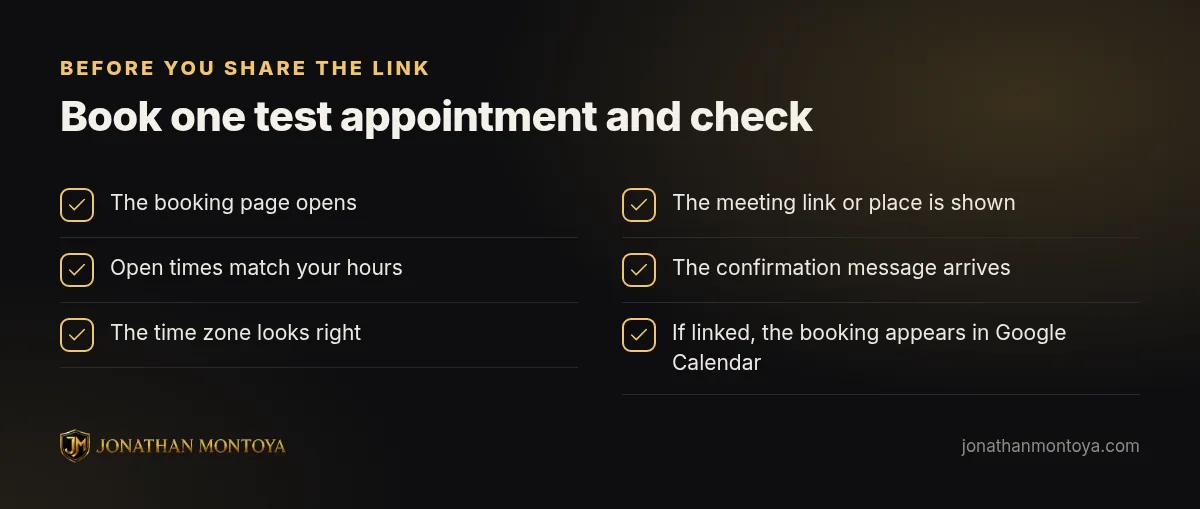
Save the calendar and copy its booking link. Open it in a private browser window. Pick a slot and fill out the page like a guest. Check that the booking appears in HighLevel under the right host. If you linked Google, check that the booking appears on the Linked Calendar. If you set up a message, open it and check the time, place and any links you chose to include.
Send the booking link when you want guests to open the page on its own. To let guests book on your site, copy the calendar's embed code and add it to the page where you want the calendar to show. If you embed it, open that page on a phone and make sure you can reach the slot picker and finish the form.
Once the test works, use Customer Booked Appointment to start a workflow that moves the lead to a Booked Call stage in your pipeline. Use Appointment Status if the workflow should run when a booking reaches a status you choose. My GoHighLevel automation guide shows how workflows fit together.
For more on chat and scheduling, see the Conversation AI guide and the Grok Bot calendar guide.
Team calendars and the setup assistant
Round robin for a team
Round robin shares bookings across a team. Assign at least one team member and check each host's hours. HighLevel lists two ways to hand out bookings, based on availability or equal distribution. If nobody on the team is free at a given time, the guest needs to choose another time.
Calendar Setup Assistant
If you see the Calendar Setup Assistant in Calendars, open it and choose Create a new calendar. Say what you need and answer its questions. Check the preview and review the setup before you click Create it.
Access depends on rollout and your calendar permissions. After setup, edit hours, location or alerts in Calendar Settings.
Common GoHighLevel calendar mistakes
- Picking Event calendar for one-on-one calls. It has no host and no dynamic Zoom or Google Meet links. Use Personal booking.
- No open slots on the booking page. Check your time zone, weekly hours, date specific hours and booking rules. My HighLevel no available slots guide walks through each fix.
- Entering only the extra hours on a long day. Date specific hours replace the whole day. Enter the full range.
- Skipping Google permissions. Partial access can break sync. Reconnect and allow everything.
- One Google login for the whole team. Each user must connect their own calendar.
- Sharing the link before a test. Book one test call and run through the checklist above.
Build your first booking calendar in HighLevel
Start with one Personal booking calendar. Set your hours, turn on a reminder and book a test call. Once that works, add more calendars.
You can copy my GHL Clone in about 5 minutes, add your own affiliate link and share it.
Start HighLevelGet the free GHL CloneMy HighLevel link shows a 30-day free trial on HighLevel's own offer page (checked Nov 19, 2026). HighLevel's standard pricing page lists 14 days. Disclosure: I earn a commission if you buy HighLevel through my link, at no extra cost to you. The GHL Clone is my own system, and I earn a commission if you later pay for HighLevel. What anyone earns depends on their own work, and no one can promise a result.
FAQ
How do I create a calendar in GoHighLevel?
Go to Settings > Calendars in your sub-account and click + New calendar. Pick a calendar type, such as Personal booking. Add a name, team member, meeting length, location and hours. Then save it and book a test appointment.
Which GoHighLevel calendar type should I pick first?
For one person who takes one-on-one calls, pick Personal booking. Pick Round robin to share bookings across a team by availability or equal distribution. Use Class booking when one host meets many people at once.
How do I share or embed my GoHighLevel calendar?
Copy the booking link and send it to guests. To let guests book on your site, copy the embed code and add it to the page where you want the calendar to show.
Why does my GoHighLevel calendar show no available slots?
Start with your hours, time zone and date specific hours. A date specific entry replaces your weekly hours for that date. For Round robin, check that at least one host is free. Check the booking rules and capacity too. On a Collective booking calendar, all hosts must be free.
Can I use Zoom or Google Meet with an Event calendar?
You can paste a fixed Zoom or Google Meet link into Meeting location. Event calendars have no assigned user, so HighLevel cannot make a new video link for each booking.
Does Google Calendar sync both ways with HighLevel?
HighLevel lists two-way sync as a benefit of the Google Calendar connection. Each user connects their own Google Calendar. Allow Calendar read and write access, plus Profile and Email access. Sync may fail if you skip a permission.
Can I set availability for every other week?
Weekly hours repeat each week. For a schedule that changes every other week, use date specific hours to set the hours for the dates that differ.
Can AI set up my GoHighLevel calendar for me?
Some accounts have the Calendar Setup Assistant. You describe what you need, answer a few questions and review the setup before you create it. HighLevel says it may only be available to some accounts during rollout.
Sources, checked Nov 19, 2026
- HighLevel guide to Personal Booking calendars
- HighLevel guide to weekly and date specific hours
- HighLevel guide to Round Robin calendars
- HighLevel guide to Class Booking calendars
- HighLevel Collective Booking use cases
- HighLevel guide to Event calendars
- HighLevel guide to Service calendars
- HighLevel guide to Schedules
- HighLevel guide to calendar notifications
- HighLevel guide to connecting Google Calendar
- HighLevel Calendar Setup Assistant
- HighLevel standard pricing page
- HighLevel offer page for my link
Affiliate disclosure: I earn a commission if you buy HighLevel through my links, at no extra cost to you. Freedom Launch Accelerator and the GHL Clone are my own programs. HighLevel is a trademark of HighLevel, Inc. This site is not run by or affiliated with HighLevel.
